
Task Cancellation — Why Your Spinner Outlives the Screen
You’ve shipped the feature. The user taps a coin, your detail screen fires off a network request, the user gets bored and taps Back. 800 milliseconds later, your fetch finally returns and… writes into a view-state for a screen that no longer exists. In the best case, nothing happens. In the worst case, you crash on a stale reference, or your “loading” spinner spins forever on the next thing the user opens.
This is the cancellation problem. Swift Concurrency has the answer baked in — but only if you opt into it.
The good news: SwiftUI’s .task modifier handles cancellation for you, and you should use it almost everywhere. The 5% of cases where you can’t — search debouncing, manual retries, prefetching — that’s where the patterns we’ll cover earn their keep.
The thing nobody tells you: cancellation is cooperative
Cancelling a task in Swift doesn’t kill anything. It sets a flag. Your code has to check the flag and bail. If you never check, the task runs to completion, wastes CPU, hits the network, and writes into something that may no longer be there.
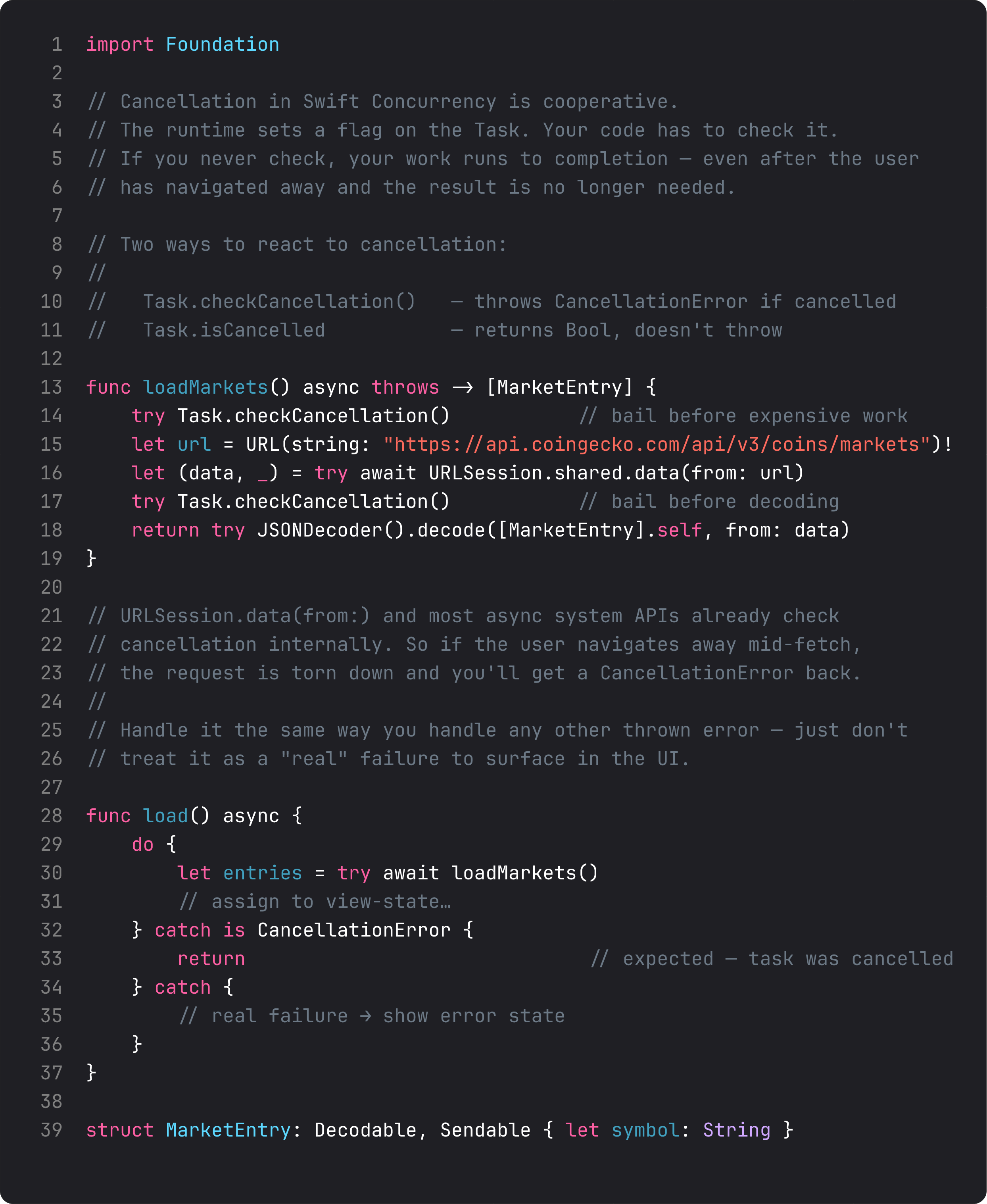
Two ways to react:
try Task.checkCancellation()— throwsCancellationErrorand unwinds. Use this when you’re already in athrowscontext.Task.isCancelled— returnsBool. Use this when you can’t or don’t want to throw (e.g., inside aTask { ... }that doesn’t propagate errors).
The other thing to know: URLSession.data(from:) checks cancellation for you. Same with most async system APIs — Task.sleep, file system calls, AsyncSequence iteration. So if your view goes away mid-fetch, the request gets torn down and you’ll get a CancellationError thrown back. Your job is just to not treat it as a real failure. Don’t show an error banner. Don’t log it. Just return.
The .task modifier — your default tool
This is the workhorse. You’ve been using it all course. Let’s name what it actually does.
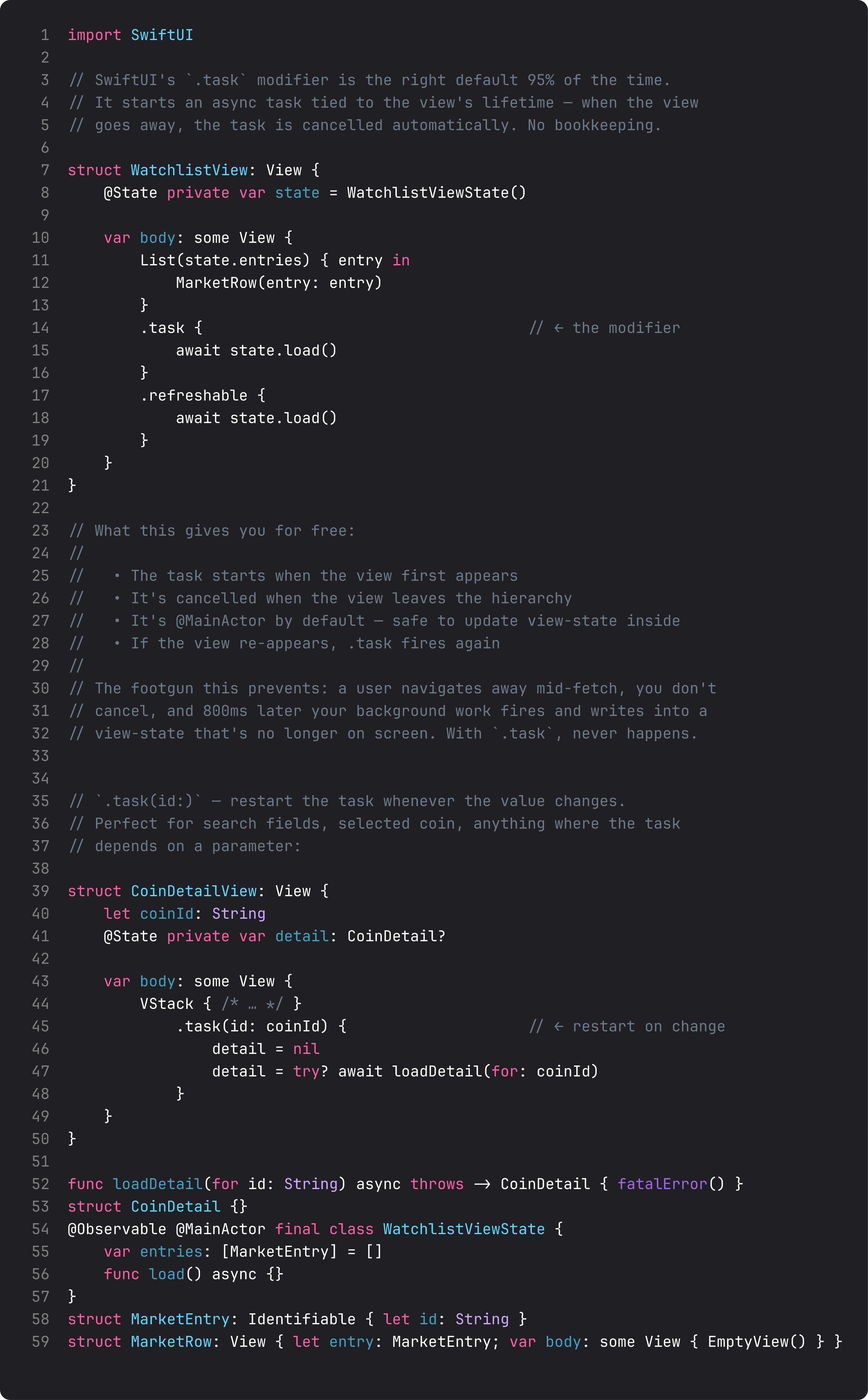
What you get for free:
- The task starts when the view first appears in the hierarchy.
- The task is cancelled automatically when the view leaves. No
Taskreference to store, noonDisappearto wire up. - The closure runs on the main actor by default — you can update view-state directly without
await MainActor.run. - If the view re-appears,
.taskfires again from scratch.
And the bigger sibling: .task(id:). Same as .task, but if the id value changes, the running task is cancelled and a new one starts with the new value. This is exactly what you want for detail screens that depend on which item is selected, or for any view where the work is parameterized.
Pulse uses .task everywhere. The watchlist view, the detail view, the refreshable pull-down — all wired through .task or .refreshable (which is just .task with a different trigger). When you navigate away mid-load, it’s gone. The view-state never gets a stale write. You don’t write a single line to make this work.
Stored Tasks — when .task isn’t enough
Three legitimate reasons to manage a Task<_, _> yourself:
- Search debouncing. Each keystroke needs to cancel the previous in-flight search.
- Explicit retry. A failed fetch with a “try again” button — you want to start a new task on tap, but cancel any zombie one still running.
- Work that outlives a single view. Background prefetch, sync, periodic refresh.
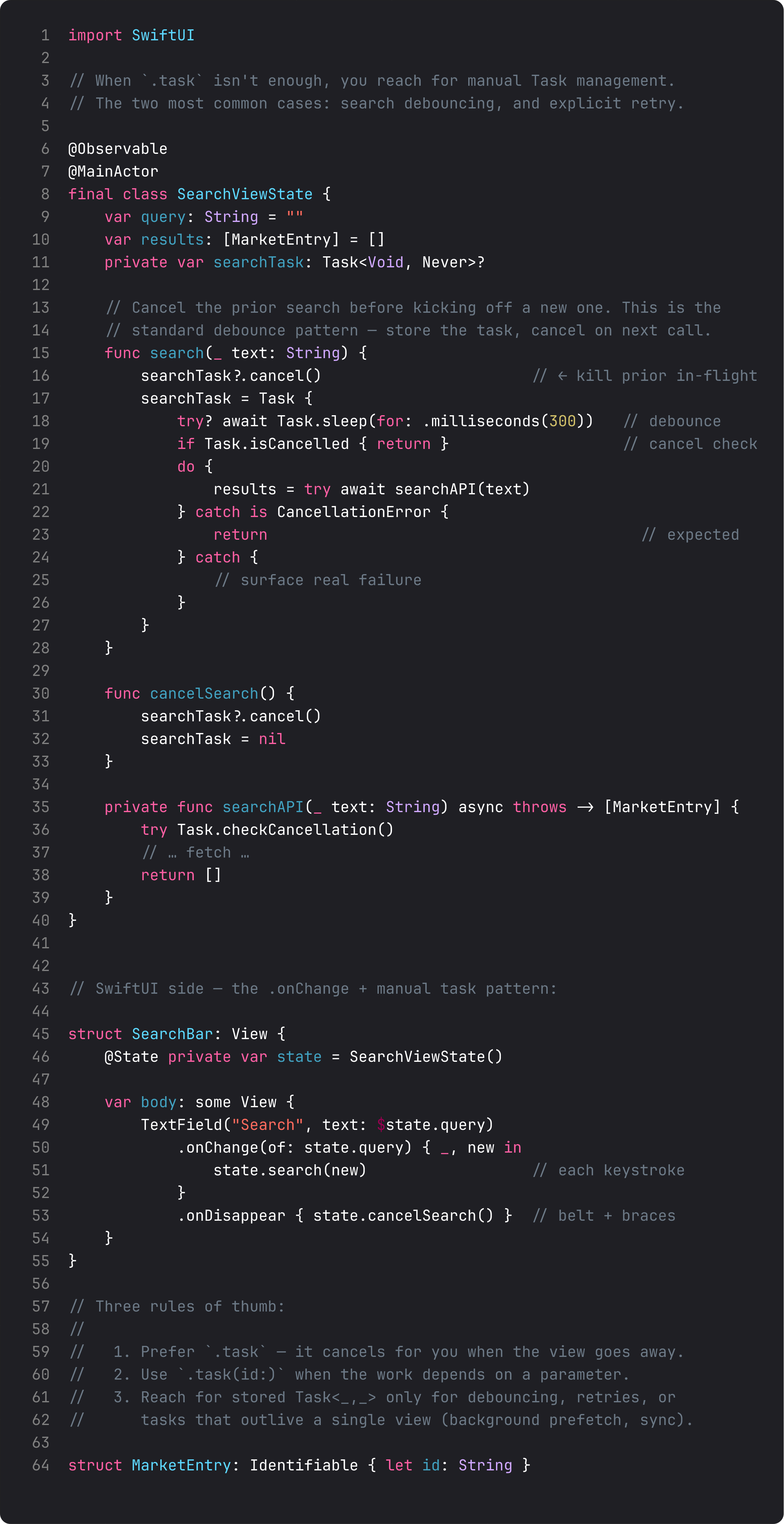
The pattern is always the same:
private var searchTask: Task<Void, Never>?

func search(_ text: String) {
    searchTask?.cancel()                   // kill previous
    searchTask = Task {
        try? await Task.sleep(for: .milliseconds(300))
        if Task.isCancelled { return }     // bail after sleep
        // ... do the work
    }
}
Task.sleep is itself cancellable, so when you cancel the prior task during the sleep window, it throws and unwinds before any work happens. That’s the entire debounce in 4 lines. No Combine, no DispatchWorkItem, no Timer.
A trap I see weekly: Task { } without storing the reference
Button("Load") {
    Task {                                  // ← orphan task
        await viewModel.load()
    }
}
This task is not cancelled when the view goes away. It’s not tied to any lifetime. If the user taps the button and then navigates back before the load finishes, the task keeps running and writes into a view-state for a view that’s gone.
The fix is almost always one of:
- Move the work into the view-state (
@MainActor func loadButtonTapped()) and call it from a.task(id:)triggered by a counter. - Use
.refreshable { await viewModel.load() }if it’s a pull-to-refresh. - If you really need an imperative trigger, store the Task on the view-state and cancel in the view-state’s
deinit.
Orphan Task { } in a button action is the single most common cancellation bug in shipping SwiftUI apps. If you take one thing from this lesson, take that.
What it looks like running
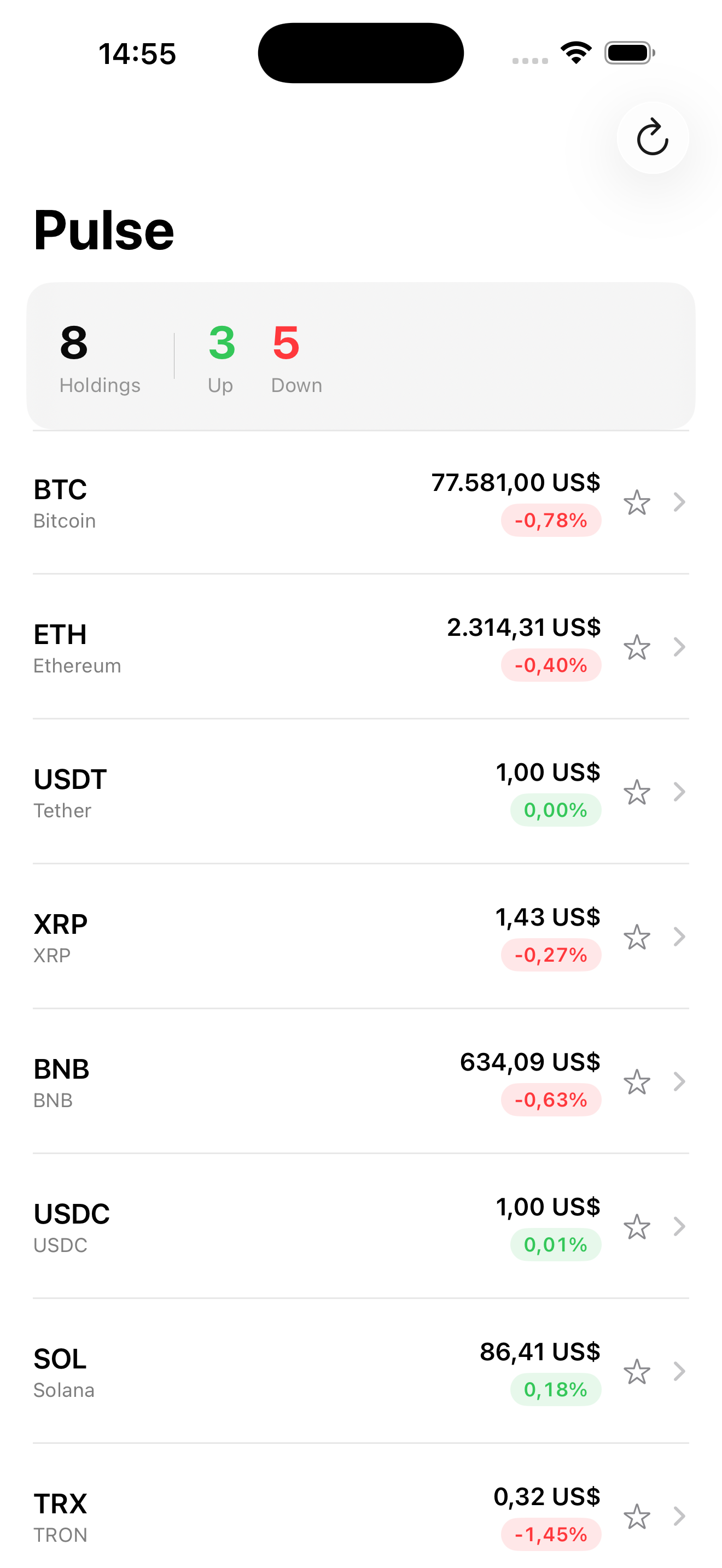
Visually nothing has changed. Pulse loads the watchlist, the user taps a coin, the detail screen fetches a chart, the user taps Back. Underneath: the chart fetch is torn down the moment the navigation pop happens. No write into a stale view-state. No log spam. No orphaned tasks accumulating.
You can verify it by adding a print("cancelled") in a catch is CancellationError branch and watching it fire every time you fast-tap between coins. That’s the system working.
Takeaway
Use .task by default. Use .task(id:) when the work depends on a value. Use a stored Task<_, _> only for debounce, retries, or work that outlives a view. Never spawn an orphan Task { } in a button action — that’s the cancellation footgun.
Cancellation is cooperative. Most system APIs check it for you. Your only job is to handle CancellationError as a non-event (silent return) instead of a failure to surface.
Next lesson: Swift Testing for view models. The @Test macro, #expect, the makeSUT pattern, and why we test view-state classes instead of views — a preview of the TDD discipline that runs through Course 3.
NativeFirst Team
EditorialThe NativeFirst team — engineers and designers building native Apple apps and writing the courses we wish we had when we started.
Comments
Leave a comment