
Animations — Spring, SymbolEffect, MatchedGeometry, Transitions
There’s a small visual difference between an app that toggles a star and an app where the star bounces when you tap it. Same behavior. Different feel. The first reads as functional; the second reads as alive.
SwiftUI’s animation toolkit is small but expressive. Three of the four tools you’ll reach for weekly: symbolEffect + contentTransition for SF Symbol micro-animations, matchedGeometryEffect for “the same view in a different place” transitions (Apple Music’s now-playing screen, every photo grid → detail), and explicit .transition for view-comes-and-goes animations.
This lesson adds a real bounce-and-morph to Pulse’s favorite star, walks through matchedGeometryEffect for a future expand-card pattern, and catalogs the transition modifiers that make in/out animations land.
SymbolEffect — the cheap polish that makes everything feel alive
symbolEffect(.bounce, value:) runs a bounce animation on an SF Symbol whenever the bound value changes. contentTransition(.symbolEffect(.replace)) smoothly morphs between two different symbols (filled vs outline, for instance). Combine them and a star tap becomes the kind of micro-interaction users remember.
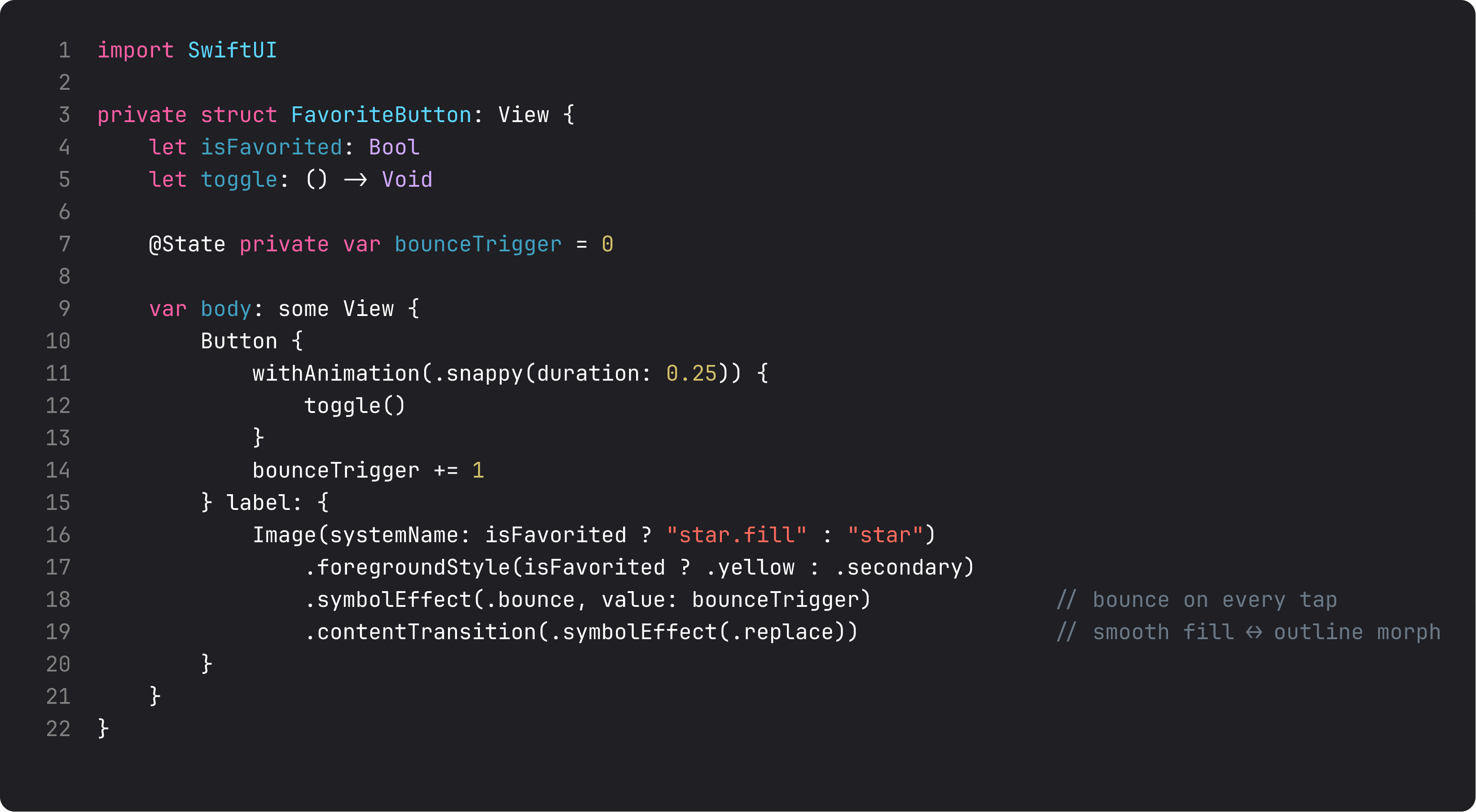
Three patterns in those few lines:
@State private var bounceTrigger = 0— an integer that we increment on every tap.symbolEffect(.bounce, value: bounceTrigger)fires the animation each time the value changes; the actual number doesn’t matter. Trigger pattern — same idea works for haptics, sounds, timed effects.withAnimation(.snappy(duration: 0.25)) { toggle() }wraps the state change in an animation context. Any side effects (the star color flip, the SwiftData insert) animate together..contentTransition(.symbolEffect(.replace))smoothly morphs fromstartostar.filland back. Without it, the symbol pops; with it, it animates. Always use this when toggling between two SF Symbols.
Other symbolEffect types: .pulse, .variableColor, .scale.up.byLayer. The catalog is in Apple’s SF Symbols app — open it, hover symbols, the inspector lists which effects work.
MatchedGeometryEffect — the expansion you see in Apple Music
matchedGeometryEffect lets two views share an identity across a state change. SwiftUI animates the position, size, and any other implicit changes between them. It’s the foundation of every “tap a thumbnail to expand into a hero” interaction in iOS.
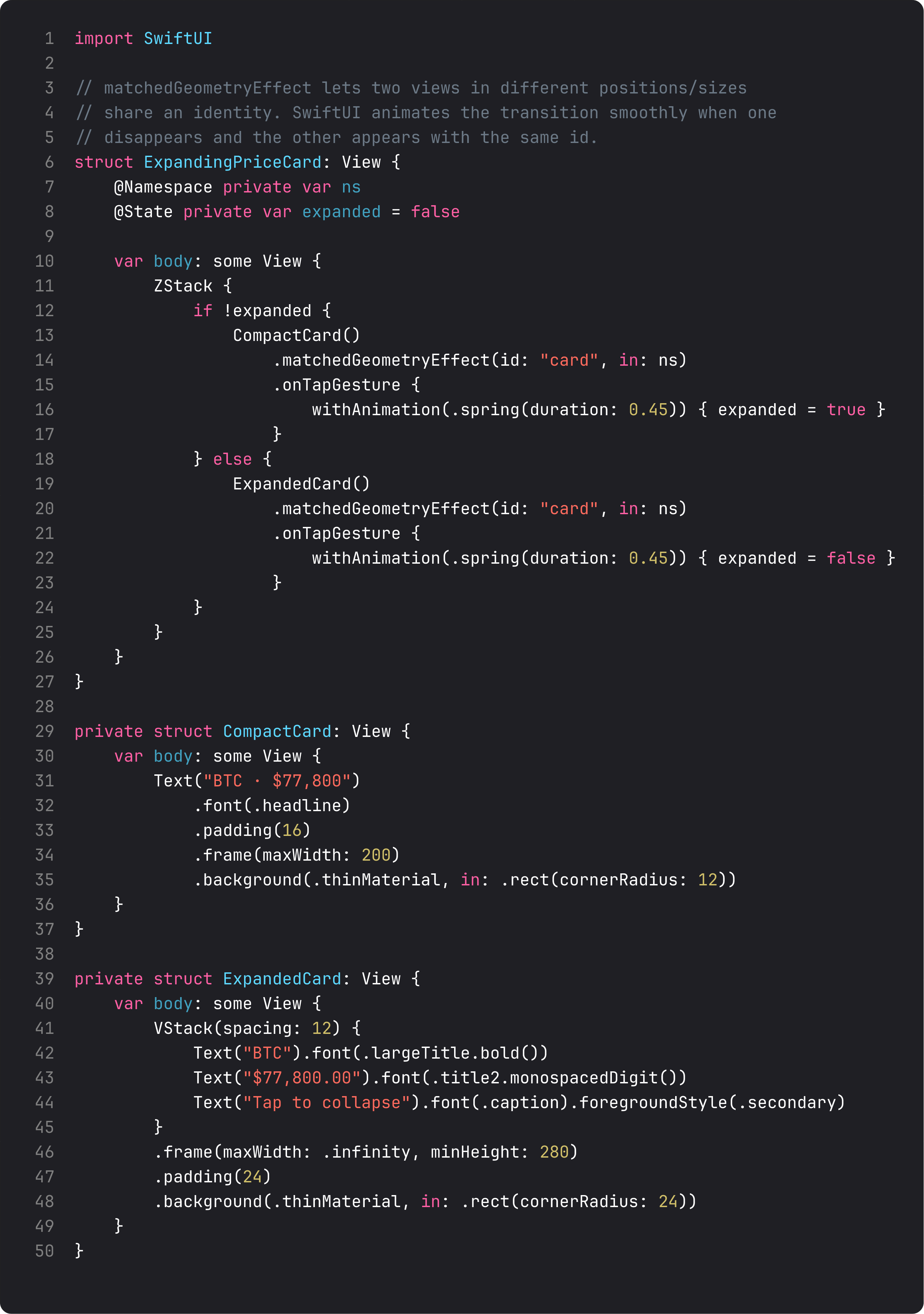
The pattern:
@Namespace private var nsat the top of the parent view — gives matchedGeometry a scope. Two effects sharing an id within the same namespace are linked..matchedGeometryEffect(id: "card", in: ns)on both the compact and expanded versions of the same logical entity. SwiftUI animates from one to the other when the conditional flips.if !expanded { CompactCard() } else { ExpandedCard() }— only one renders at a time, but they’re “the same card” as far as the animation system is concerned.withAnimation(.spring(duration: 0.45))wraps the toggle. The spring duration controls how zippy the transition feels; 0.4–0.5s is the sweet spot for full-screen expansions.
Pulse doesn’t ship this pattern today — it’s reserved for lesson 12 when we expand the market detail into a chart view. But the technique is the same anywhere you want “the same thing, in a different place” to feel continuous instead of cut.
Explicit transitions for views that come and go
When a view appears or disappears (via if, switch, ForEach), SwiftUI uses a default fade transition. Override it with .transition(...) for richer in/out animations.
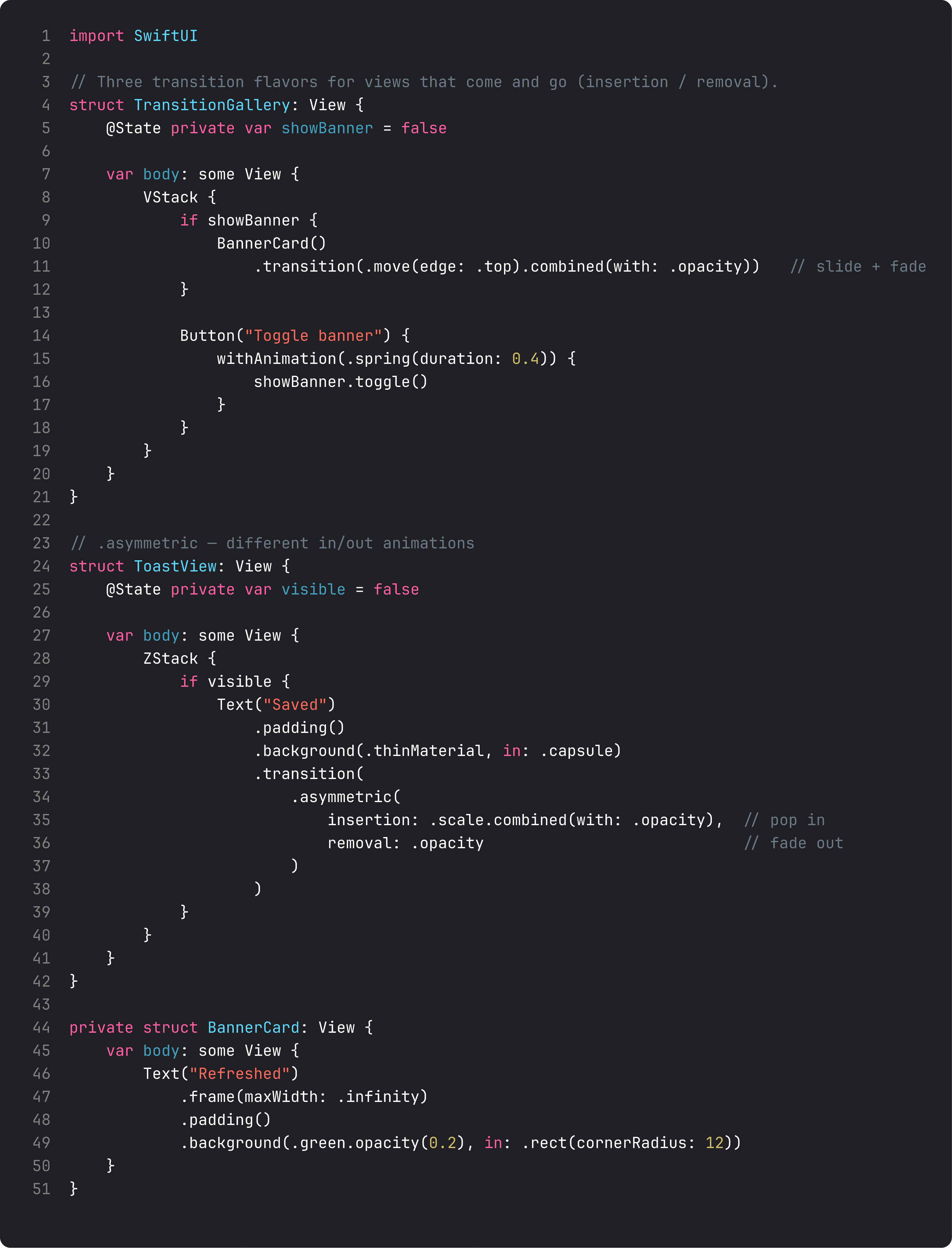
The two patterns you’ll use most:
.combined(with:)— chain transitions..move(edge: .top).combined(with: .opacity)slides AND fades. Multiple transitions per modifier; SwiftUI runs them in parallel..asymmetric(insertion:removal:)— different in than out. A toast pops in (.scale + .opacity) and fades out (.opacity). This mismatch is what real apps do; symmetric transitions feel mechanical.
The opposite of an animated transition is also a tool: .transition(.identity) or no transition at all is correct for purely informational views (loading spinners that should appear immediately, etc.). Don’t animate everything — animations cost frames; reserve them for moments that earn the user’s eye.
A trap I see weekly: animating the wrong layer
The vibe-coded version of “make the list animate when refresh happens”:
List(state.entries) { entry in
    MarketRow(entry: entry)
        .animation(.spring, value: state.entries)   // ← wrong
}
Animating each row by binding to the entire entries array means every row re-runs its animation every time any row changes. Scroll a list of 50 markets while a refresh is happening and you’ve got 50 simultaneous animations fighting for the same frame budget. The result: choppy, expensive, doesn’t actually look like anything.
The right place for the animation is the transitions of items in/out:
ForEach(state.entries) { entry in
    MarketRow(entry: entry)
        .transition(.opacity)            // each row fades when added/removed
}
.animation(.spring, value: state.entries.count)   // animate count changes
Animate transitions, not data updates. A row that already exists shouldn’t re-animate; only the rows that appeared or disappeared should.
What it looks like running
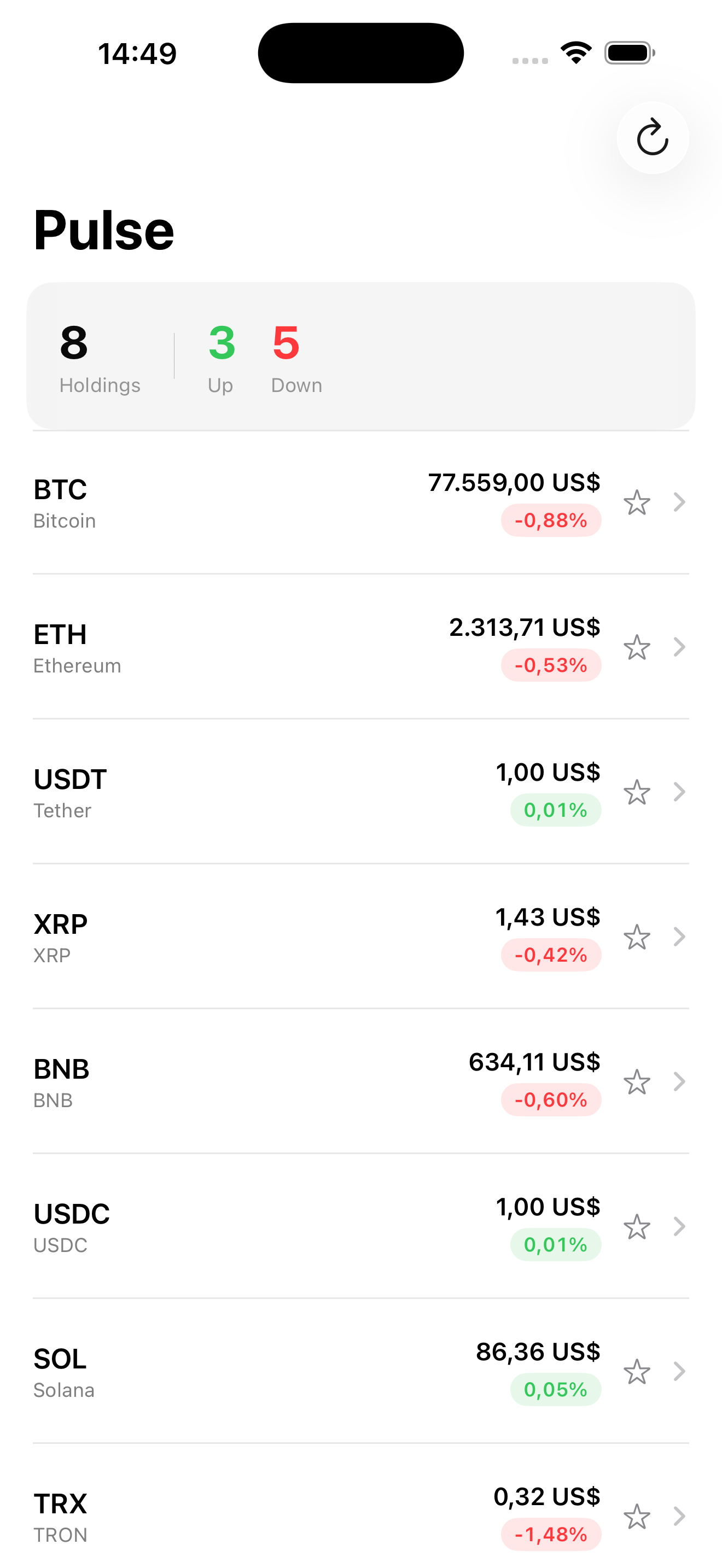
Tap a star — it bounces, fills, holds. Tap again — bounces, empties, holds. The animation’s only ~250ms but it’s the difference between a button that works and a button that delights.
Takeaway
symbolEffect + contentTransition for SF Symbol micro-interactions. matchedGeometryEffect for “same view, different place” expansions. .transition (especially .asymmetric) for views that come and go. .snappy and .spring are the system curves you’ll use 95% of the time.
Animate transitions, not data updates. Animate one layer at a time. Use the system’s named curves; don’t roll your own.
Next lesson: Apple Charts. We add a real price-history chart to Pulse’s market detail screen — a LineMark, a custom domain, and the chart-area gradient that makes it look pro.
NativeFirst Team
EditorialThe NativeFirst team — engineers and designers building native Apple apps and writing the courses we wish we had when we started.
Comments
Leave a comment