
Cache Strategy — Stale-While-Revalidate, the Pattern That Defines Feel
The Pulse you have at the end of lesson 8 fetches every screen on every launch. That’s fine on a good network. On a coffee-shop WiFi, on a train, on cellular at the edge of a tower’s range, it’s a 3-second blank screen with a spinner. Real apps don’t make the user wait for fresh data when stale data would do.
The pattern is stale-while-revalidate (SWR). Three rules:
- Render the cached snapshot immediately if there is one.
- Always trigger a background refresh when the screen loads.
- Update the UI when fresh data lands — quietly, without throwing away the user’s reading position.
That’s it. The user sees data at 0ms instead of 1500ms. They don’t notice the refresh. The app feels twice as fast for a one-screen change.
This lesson adds a MarketsCache to Pulse, wires SWR into WatchlistViewState, and shows a small “showing cached data” banner the moment the network has a fresh failure but old data is still on screen.
The cache — UserDefaults is fine for this size
For watchlist sizes (8–50 entries) UserDefaults with JSON is the right tool. Don’t reach for SwiftData / Core Data / sqlite for “the last response from one endpoint.” UserDefaults is fast, atomic, and you can clear it with one line.
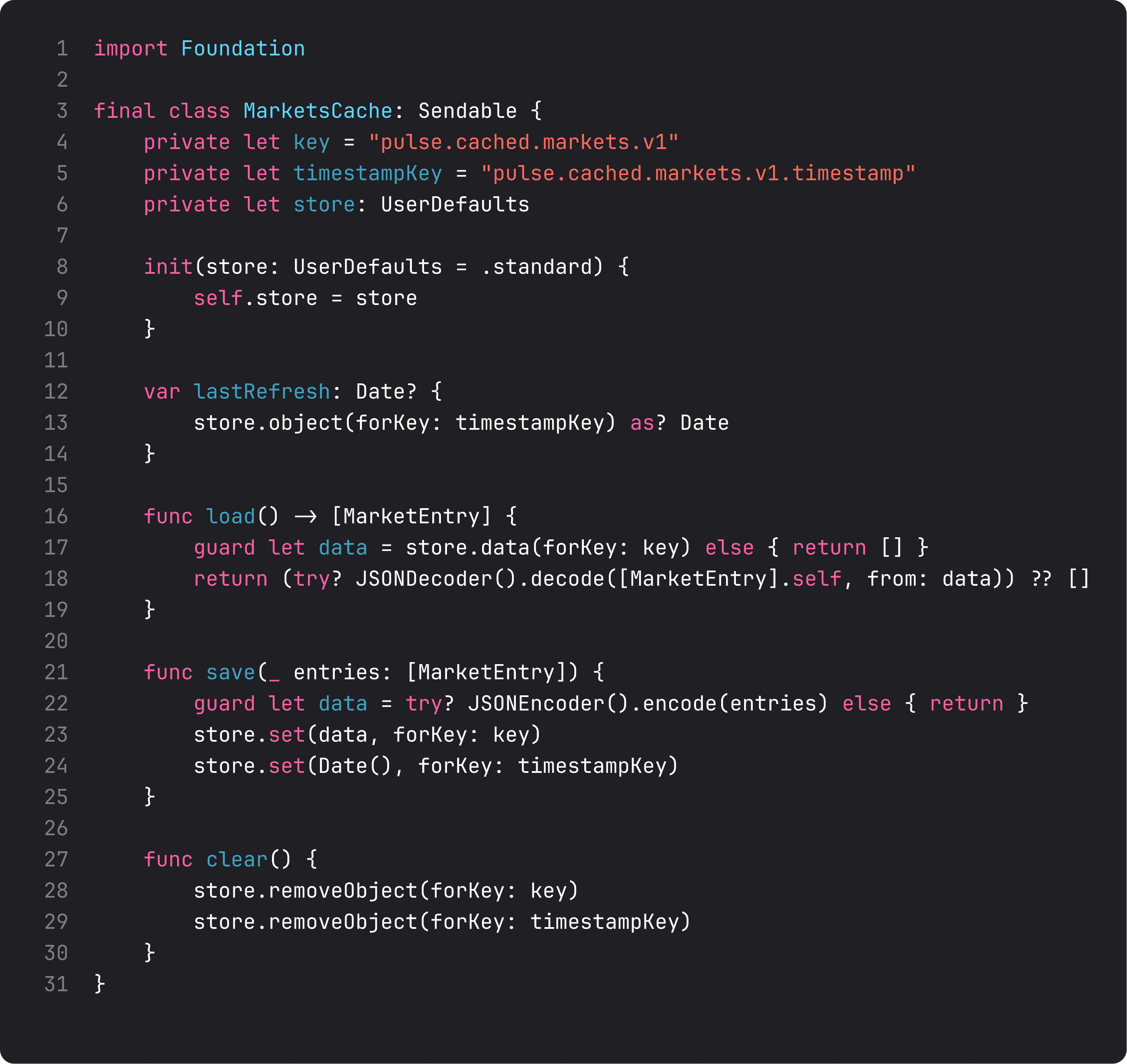
Three small things worth noting:
MarketEntryhad to gainCodablefor JSON encoding. One word added to the conformance line —Decimal,Double, andStringare all Codable already.- Versioned key (
...v1). The day we change the JSON schema, bumping the key (...v2) automatically invalidates all old caches. Migration via key rename — simpler than writing a real migration when the cache is just a snapshot. lastRefreshtimestamp stored alongside. The UI can show “updated 3 minutes ago” without a separate state machine.
For larger caches (history, search results, image thumbnails) graduate to SwiftData or a real on-disk store. For this size, UserDefaults is the right call.
Stale-while-revalidate in the view-state
The load() method gets two phases instead of one. Phase 1 is synchronous in feel — show what we have. Phase 2 is the network — update what we just showed.
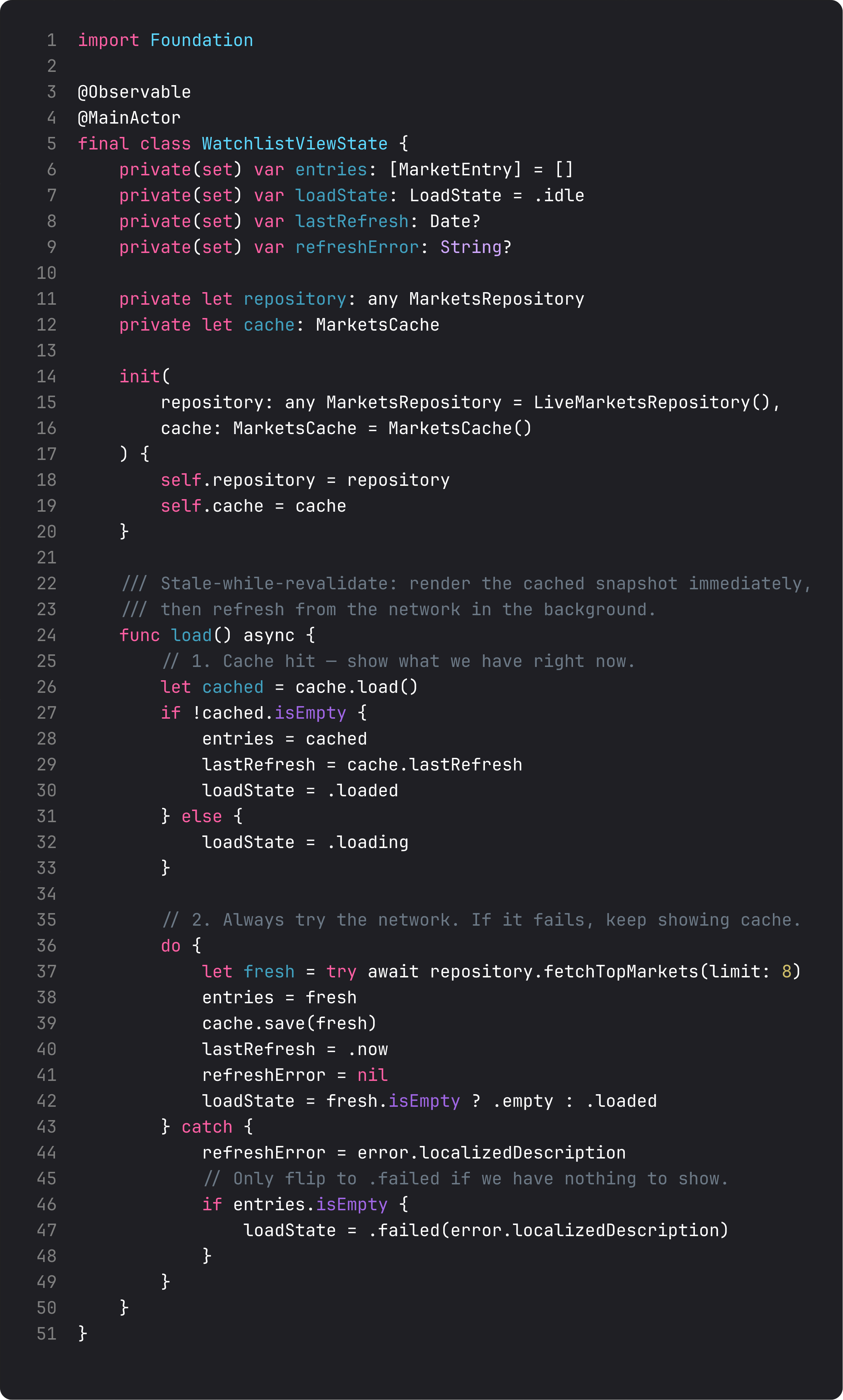
The key behaviors:
- Cache hit →
loadState = .loadedimmediately, with the cached entries. The UI flips out of.loadingbefore the network even started. - Cache miss →
loadState = .loadingas before. We still need the spinner for the first-ever launch. - Network success → overwrite cache, refresh the UI. SwiftUI’s diffing handles the row updates for free.
- Network failure → keep the cached entries on screen, set
refreshError. The view shows a small banner (“Showing cached data — couldn’t refresh”). Only flip to.failedif there’s nothing to fall back to.
This last branch is what makes the pattern feel mature. A flaky network shouldn’t lose data the user already had. Stale data is almost always better than no data.
The “showing cached data” banner
For honesty, when we’re showing cached entries because the refresh failed, the user should know. A small banner at the top of the screen — non-blocking — does it.
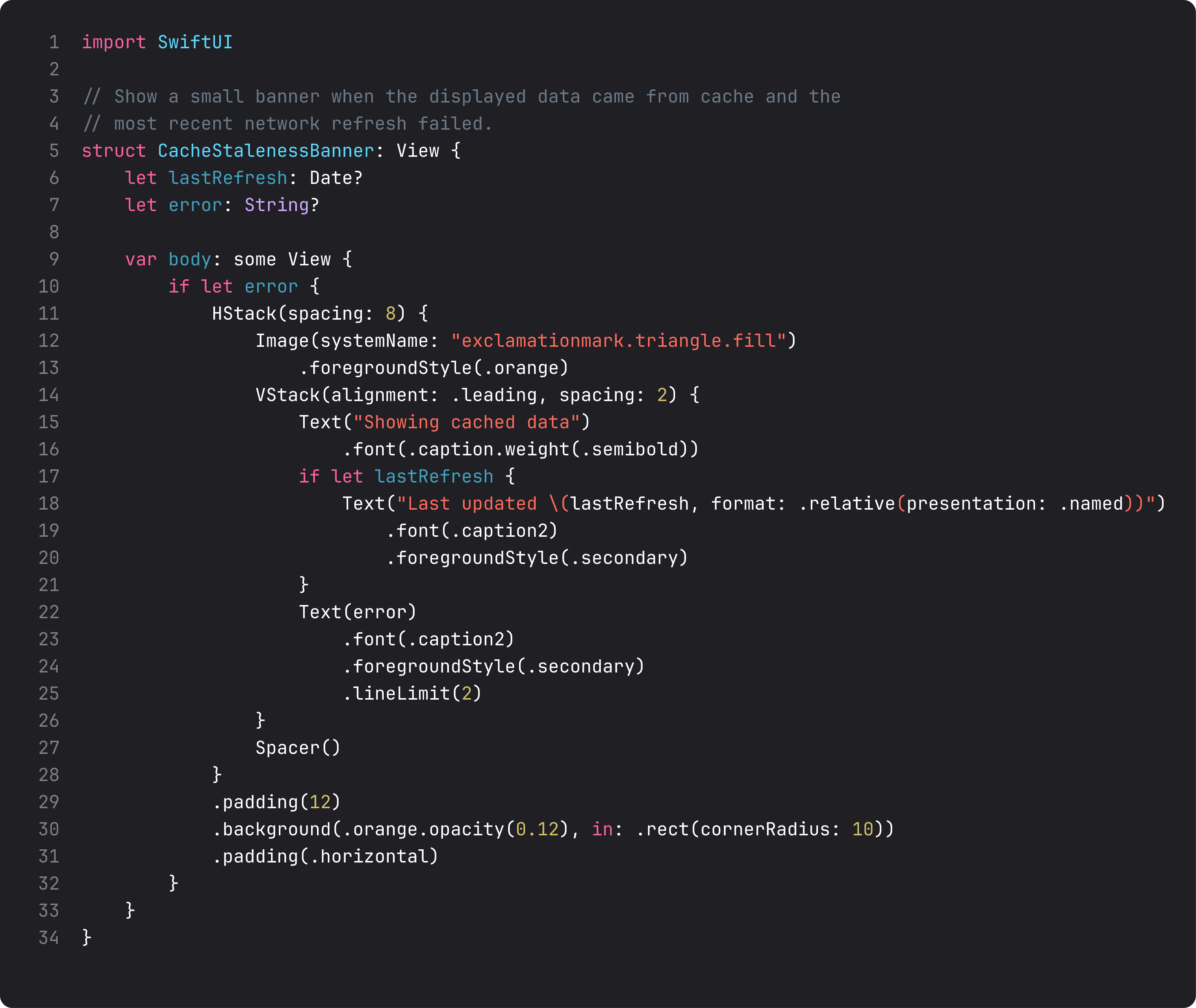
Three details:
- Conditional render with
if let error— the banner is only there when there’s a real refresh failure. No clutter when things are working. - Relative time format — “Updated 3 minutes ago” reads better than ISO timestamps. SwiftUI’s
.relative(presentation: .named)updates as time passes (with a small caveat — re-render on app foreground if precision matters). - Color signal: orange triangle, soft orange background. This is the iOS equivalent of “yellow alert” — drawing the eye without alarming.
Add this banner above the list, hide it when refreshError == nil, and you’ve covered every state the user might be in: fresh data (no banner), cached + refresh-failed (banner with explanation), cached + refresh-succeeded (banner gone, fresh data on screen).
A trap I see weekly: the “always re-fetch on appear” pattern
The vibe-coded version:
.task { await state.load() } // fires on every appear, blanks screen, shows spinnerLooks innocent. Bites every time. Every navigation back to this screen wipes the data and shows a spinner. Even if the user just looked at the screen 3 seconds ago.
The SWR pattern fixes this without changing the call site. state.load() internally checks the cache first, so the screen only shows a spinner on a true cold start. Subsequent calls (back-navigation, tab switch, app foreground) hit the cache and the spinner never appears.
The fix lives entirely in the view-state, not the view. One layer holds the policy, every screen benefits. That’s what separating concerns gets you.
What it looks like running
First launch: spinner, then loaded. Kill the app. Second launch: data appears before the spinner can render, then the new fetch refreshes prices in place. The visible difference between “no cache” and “with cache” is the difference between “this app feels slow” and “this app is fast” — same network, same view, different cache strategy.
Takeaway
Stale-while-revalidate: render the cache, refresh in the background, update on success, show a banner on partial failure. UserDefaults + JSON for cache-of-one-endpoint, SwiftData when the cache itself becomes a queryable database. Cache invalidation via key versioning for the most common case — schema bumps.
The 3-second blank-screen launch is a choice you don’t have to keep making.
Next lesson: design system primitives. We extract Pulse’s repeated visual patterns (cards, headers, buttons) into reusable ViewModifier extensions and ButtonStyle conformances — the system that prevents drift across 50 screens.
NativeFirst Team
EditorialThe NativeFirst team — engineers and designers building native Apple apps and writing the courses we wish we had when we started.
Comments
Leave a comment