
Where Do Your AI Prompts Go to Die?
Last Tuesday at 11 PM, I spent 25 minutes looking for a prompt.
Not writing one. Not refining one. Looking for one. A prompt I’d written three weeks ago that generated perfect release notes for our App Store descriptions. I knew it existed. I’d used it at least five times. It was incredible — saved me an hour every time.
Was it in my ChatGPT history? Scrolled for ten minutes. Nothing. In my Claude conversations? Maybe. In that Apple Note I titled “good prompts”? That note had 47 entries and zero organization. In the Slack message I sent myself? Which Slack workspace?
I found it eventually. In a Google Doc titled “misc stuff DO NOT DELETE.” Page 14. Between a grocery list and a half-finished cover letter from 2024.
And right there, at 11:27 PM, staring at my screen with the kind of quiet rage usually reserved for IKEA furniture assembly, I thought: this is stupid. This problem is so stupid. And nobody has solved it.
So We Ran a Survey
I couldn’t shake the feeling that this wasn’t just a me problem. So we did what any self-respecting research-obsessed team does: we made a Google Form and put it where AI enthusiasts live — Reddit, X, Hacker News, a few Discord servers, and our own newsletter.
2,847 people filled it out over 12 days. The results were worse than I expected.
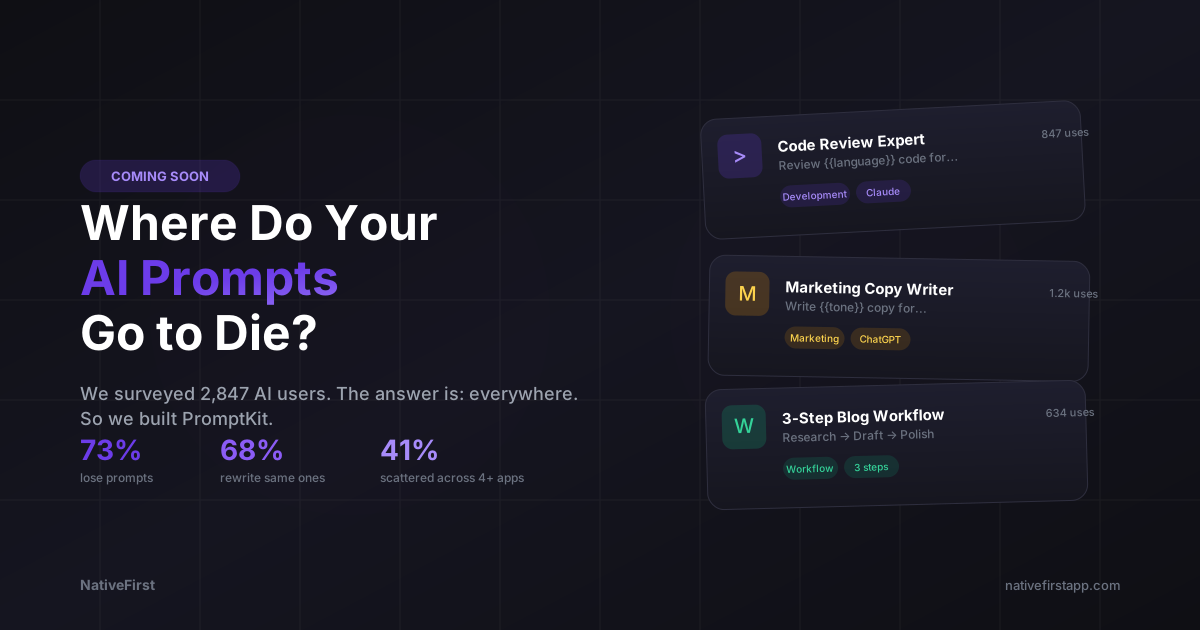
73% lose prompts regularly. Not “once in a while.” Regularly. As in: they have a prompt they know they wrote, they know it works, and they cannot find it. This is the digital equivalent of knowing you own a screwdriver but having to buy a new one every time because the last one is in a box in the garage somewhere behind the holiday decorations.
68% have rewritten the same prompt from scratch. More than two-thirds of respondents have literally rebuilt a prompt they already built. Not improved it. Not iterated on it. Rebuilt it because they couldn’t find the original. That’s not a workflow. That’s a Groundhog Day situation.
The average user stores prompts across 4.2 different apps. Notes app. Chat history. Google Docs. Notion. Slack messages to themselves. Text files on the desktop. Email drafts. Bookmarks. Obsidian vaults. One person said they screenshot good prompts and save them to their Photos app. I wanted to cry and also give them a hug.
2.3 hours per week wasted on prompt management. Not using prompts. Not writing prompts. Managing them. Finding them. Copying them between apps. Reformatting them. That’s 120 hours a year spent being your own prompt librarian.
The Prompt Graveyard
Here’s what I found when I audited my own prompt storage situation. And I’m someone who thinks about organization professionally.
ChatGPT history: 340+ conversations. No folders. No tags. The search works if you remember exact phrases — which you never do because you wrote the prompt at midnight and can’t remember if you said “refactor” or “rewrite” or “clean up.”
Claude conversations: Similar story. Great AI, terrible prompt archeology. Once a conversation scrolls past your visible history, it might as well be in a time capsule buried in your backyard.
Apple Notes: One note called “Prompts” with 47 entries. No categories. No indication of which AI each prompt is for. Half of them are fragments — “try something like: analyze the code and…” Analyze what code? For what? Past-me was not a thoughtful documentarian.
Slack DMs to myself: 23 prompts across three workspaces. Finding one requires remembering which workspace and which approximate week I sent it. Slack search is fine for “who said what in the meeting” but terrible for “find that prompt template I sent myself sometime in February probably.”
Random .txt files: Three files on my Desktop. Two are duplicates. One is named prompts_final_v2_ACTUAL_FINAL.txt. I’m not making this up.
This is insane. And the survey tells me I’m not special — I’m average.
The Part That Made Me Angry
Here’s what really got me: there’s no excuse for this.
We have phenomenal apps for managing passwords (1Password, Bitwarden). We have apps for managing bookmarks, recipes, code snippets, reading lists, tasks, contacts, and literally every other type of structured text humans deal with.
But prompts? The thing that millions of people use every single day to interact with the most powerful technology of our generation? The closest thing we have is… the chat history scroll.
That’s like if the only way to organize your photos was to scroll through your camera roll and hope for the best. We solved that problem years ago with albums, faces, places, and search. Prompts deserve the same treatment.
And it gets worse when you think about prompt reuse. A great prompt isn’t a one-time thing. My release notes prompt? I use it every two weeks. My code review prompt? Daily. My “explain this like I’m smart but don’t know the domain” prompt? Multiple times a day. These are tools, not messages. But every app we use treats them like disposable text.
We Built PromptKit
So we did what we always do when a problem annoys us enough: we built a native app.
PromptKit is a native iOS and macOS app for saving, organizing, launching, and sharing AI prompts. It’s the prompt manager that should have existed two years ago.
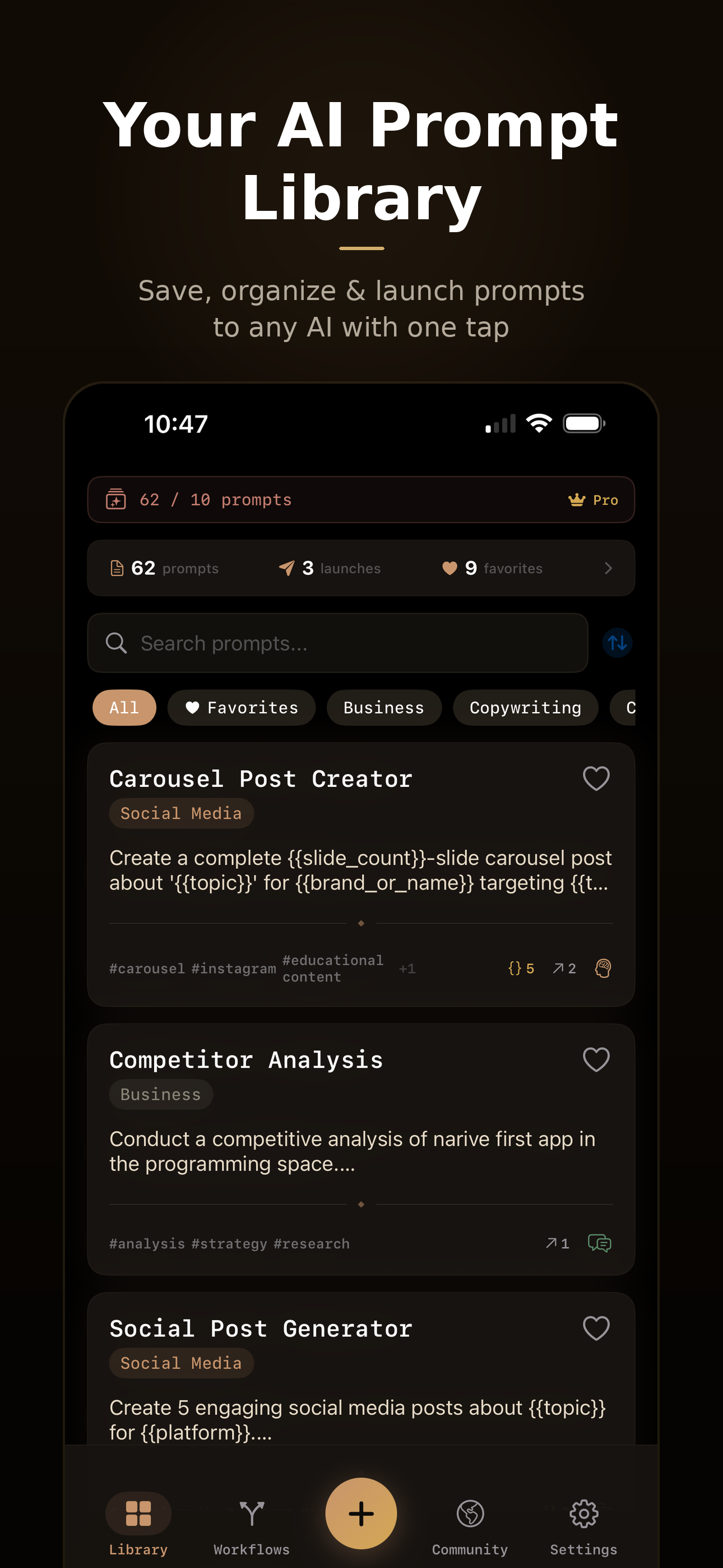
Here’s what it does.
Your Prompt Library
Every prompt you save lives in one place. Title, body, tags, category, favorite flag. Full-text search across everything. Filter by tag, category, or favorites. Sort by recently used, most used, alphabetical, or date.
No more “which app did I save that in?” One library. One search. Done.
The library shows you usage stats right on each card — how many times you’ve launched it, when you last used it. Your most-used prompts float to the top. The ones you forgot about are still there, waiting, organized, findable.
Variables That Actually Work
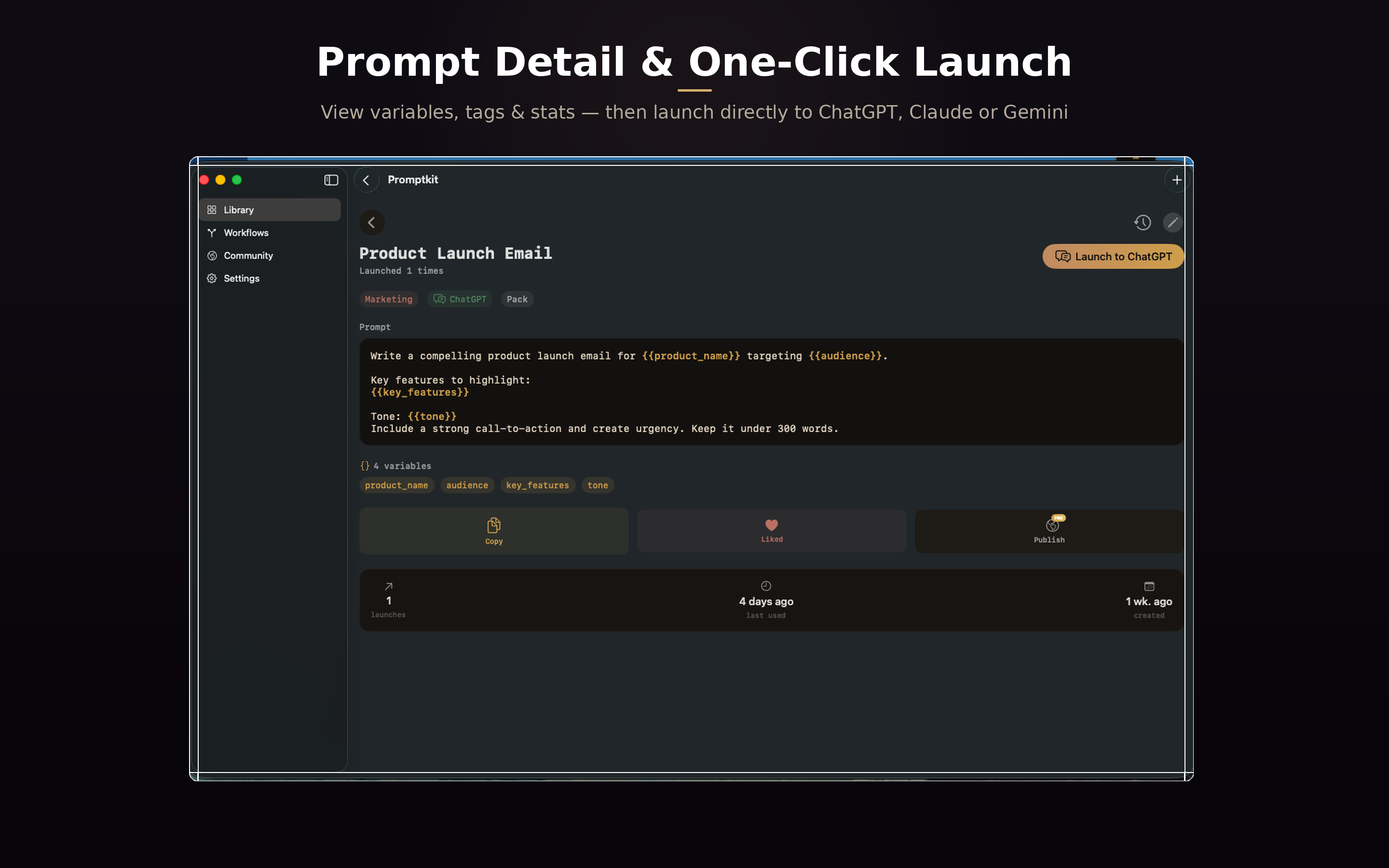
Here’s where it gets interesting. PromptKit supports {{variables}} in your prompts.
Write a prompt once: “Write a {{tone}} product description for {{product_name}} targeting {{audience}}.”
Every time you launch it, a quick form pops up. Fill in the blanks. Launch. Done.
Variables can have default values. They can be text, numbers, or dropdown selections. One prompt becomes an infinitely reusable template.
I have a code review prompt with a `{{language}}` variable. Same prompt works for Swift, Python, TypeScript — I just pick the language and go. Wrote it once. Used it 200+ times.
Launch to Any AI
This is the feature that makes everything click. From any prompt, tap Launch and pick your AI.
ChatGPT, Claude, Gemini, Perplexity, Copilot, Grok, DeepSeek — all supported at launch. PromptKit uses deep links to open the native app when it’s installed. Falls back to the web version. And if neither works, copies to clipboard with a “paste this” instruction.
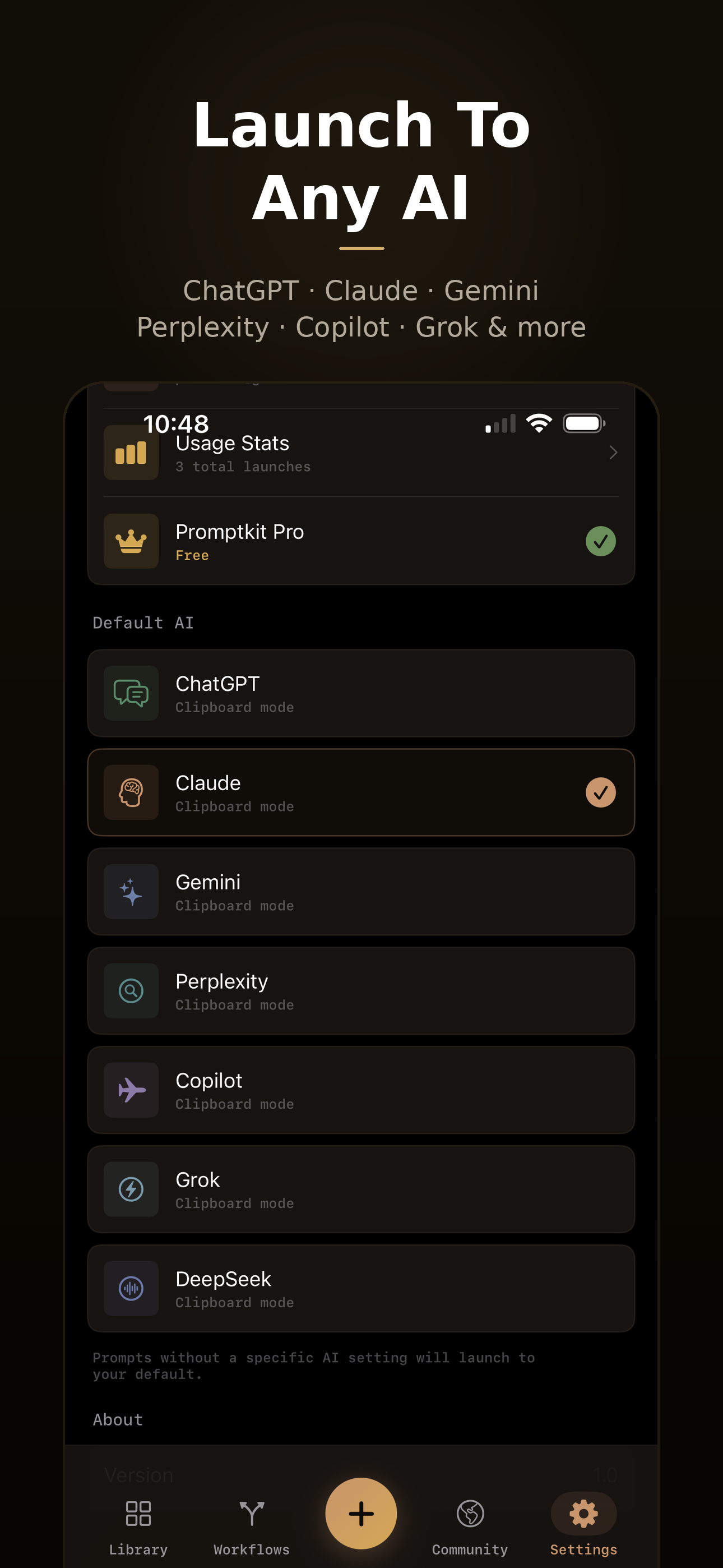
You can set a default AI per prompt. My code review prompt always goes to Claude (we talked about why in our Claude Code commands post). My marketing copy prompt goes to ChatGPT. My research prompts go to Perplexity. Each prompt knows where it belongs.
There’s also a global default in settings. For everything else, your preferred AI is one tap away.
Workflow Builder
Single prompts are powerful. Chained prompts are a superpower. We’ve written before about how AI automation layers work — PromptKit’s workflows bring that same idea to everyone, no terminal required.
PromptKit’s workflow builder lets you create ordered sequences of prompts. Each step references a saved prompt, can override the target AI, and runs in order.
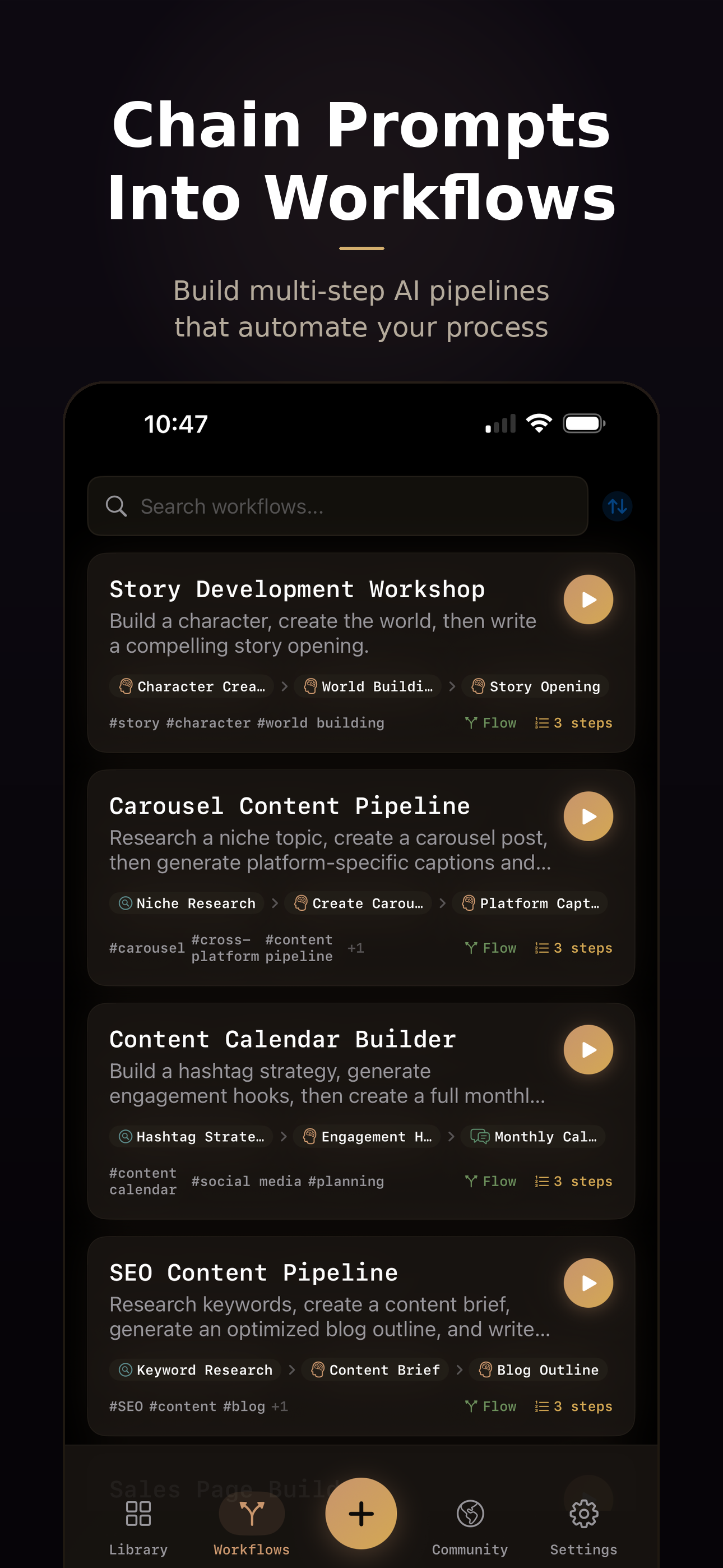
My blog post workflow:
- Research — send topic to Perplexity for current data and sources
- Outline — send research + topic to Claude for a structured outline
- Draft — send outline to Claude for a full first draft
- Polish — send draft to ChatGPT for tone and readability improvements
Four steps. Four different prompts. Two different AIs. One tap to start, then step through each one. The workflow runner shows your progress (step 2 of 4), handles variable fill-in if needed, and launches each step to the right AI.
I used to do this manually, every time, remembering the order and copying between tabs. Now it’s a saved workflow I run with one tap.
Community Feed
This is the part I’m most excited about — and the part that makes PromptKit more than a personal tool.
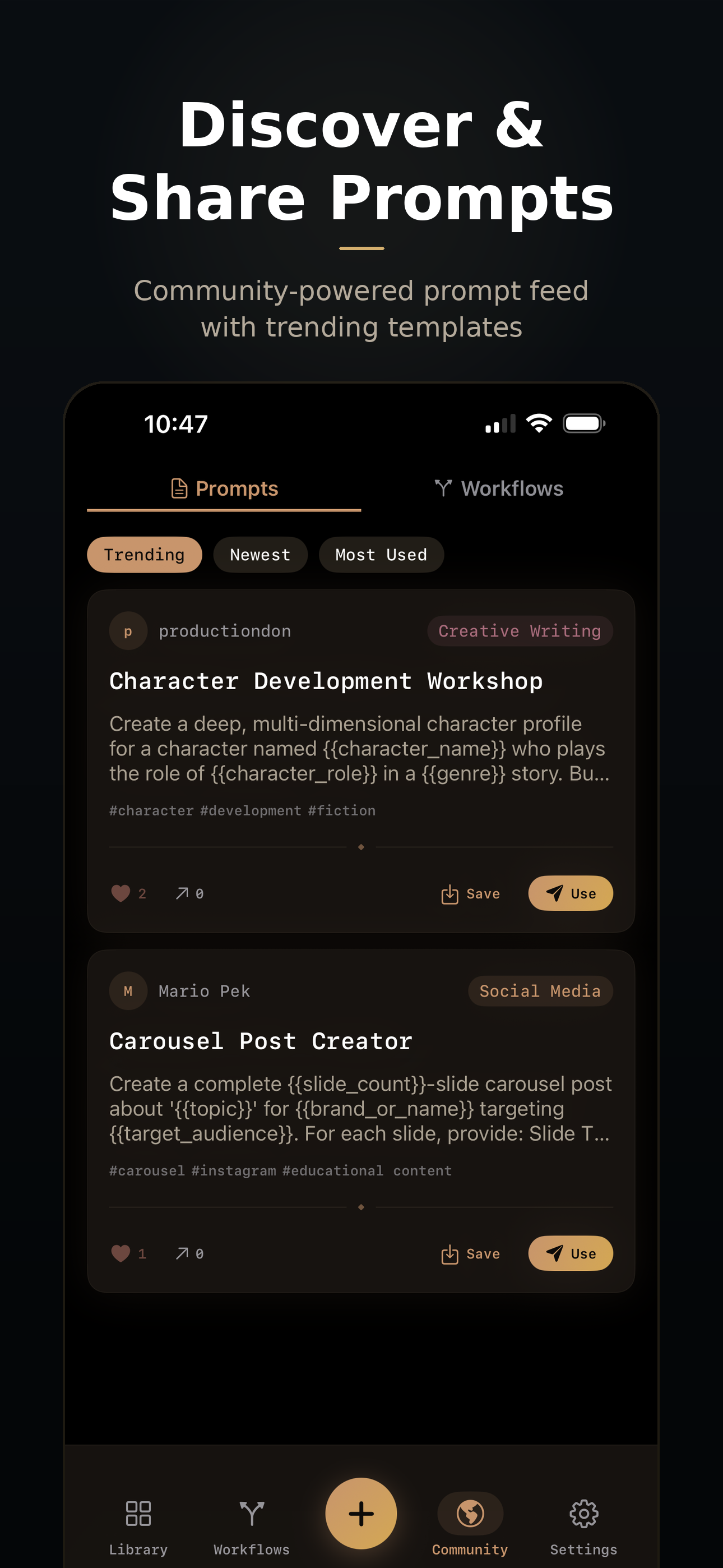
PromptKit has a community feed where users can publish their best prompts. Browse by category, search, see what’s trending. Every community prompt shows the title, a preview, the author, usage count, and likes.
Found a prompt you love? Save it to your library with one tap. It becomes yours — edit it, customize it, add variables. The original author gets credit and a like count that says “people actually use this.”
You can optionally publish any of your personal prompts to the community. It’s opt-in per prompt. If you built something great, share it. If your prompt library is personal, keep it personal. No pressure.
The vision: a prompt marketplace without the marketplace. No buying, no selling. Just a community of people sharing what works. We think the best prompts shouldn’t be locked in someone’s Notes app. They should be findable, usable, and improvable by everyone.
Keyboard Extension
This one’s sneaky good.
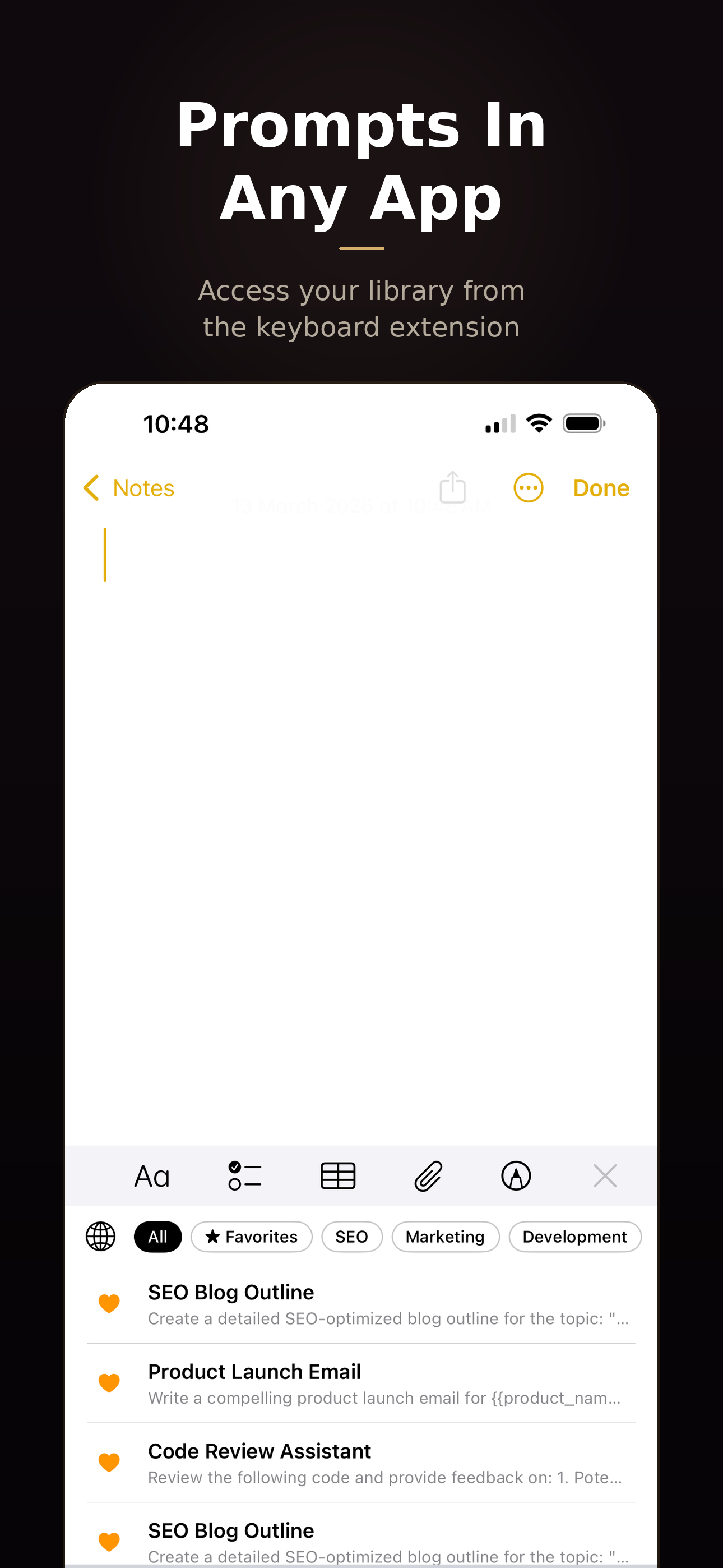
PromptKit ships with a keyboard extension that gives you access to your entire prompt library from any app on iPhone and iPad. Writing an email? Pull up your email template prompt without leaving Mail. In Safari? Grab your research prompt right from the keyboard.
Your categories are right there. Your favorites. Your most-used. All accessible without switching apps.
This is the kind of deep native integration that a web app or Chrome extension literally cannot replicate. Apple’s keyboard extension API gives you a custom keyboard layer that works system-wide — in every single app on your device.
Quick Actions & Menu Bar
Long-press the PromptKit icon on your home screen and you get instant actions: New Prompt, Search Prompts, and Workflows. No need to open the app, navigate to a tab, and tap a button. Jump directly to what you need.
On Mac, PromptKit lives in your menu bar. Click the icon, search your prompts, launch one — all without opening the full app window. It’s always there, always fast, always one click away.
And if your prompts contain sensitive business data — client names, competitive analysis, confidential workflows — you can lock PromptKit behind Face ID. One toggle in settings. Nobody gets in without your face.
Usage Stats
Because data is motivating.
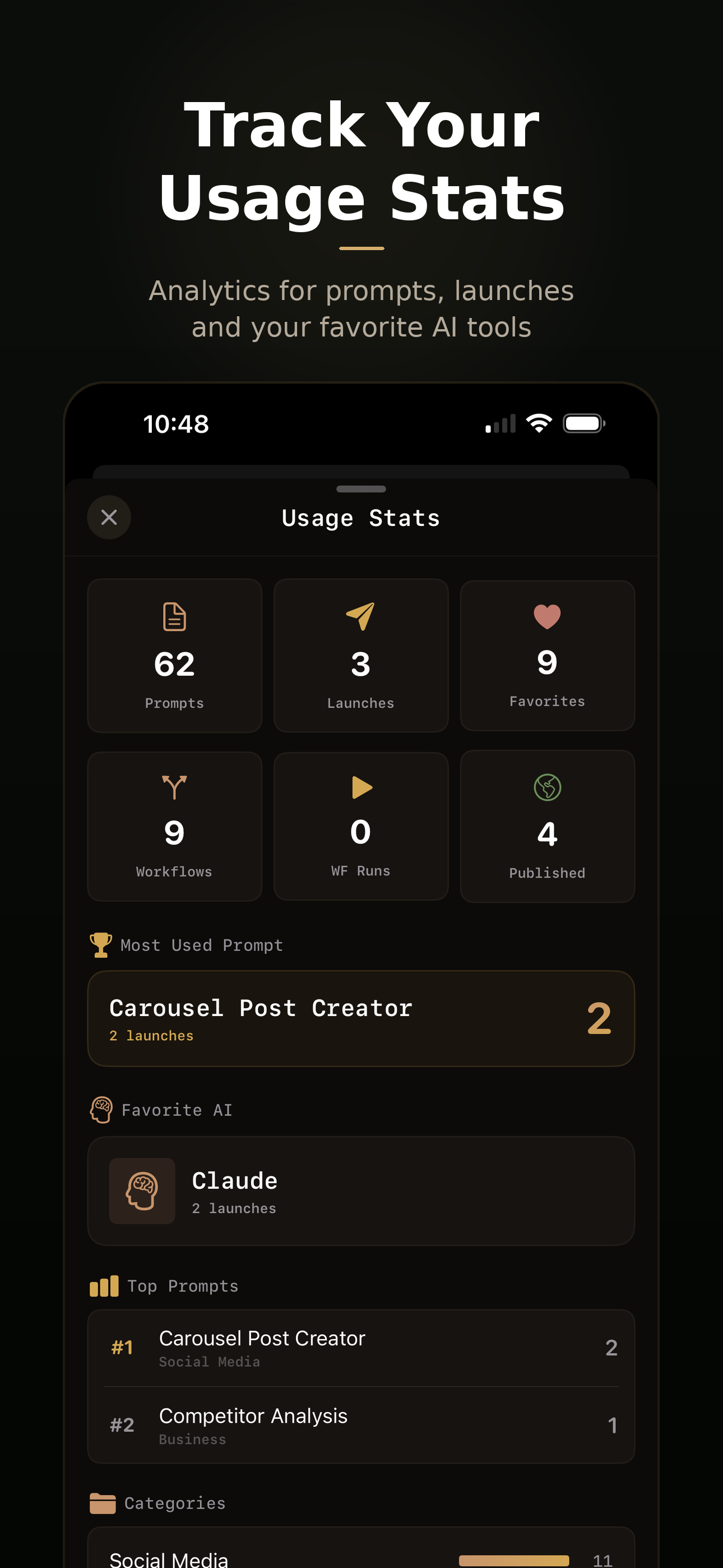
PromptKit tracks your prompt usage — total prompts, launches, favorites, workflows, published prompts. You see your most-used prompt, your favorite AI, and your top prompts ranked by usage.
It’s genuinely fun to see which prompts you use the most. And it quietly tells you which ones you should probably share with the community.
Runs on iPhone and Mac
PromptKit is a universal app — native SwiftUI on both iOS and macOS. Same library, same workflows, same prompts. Real-time sync across devices.
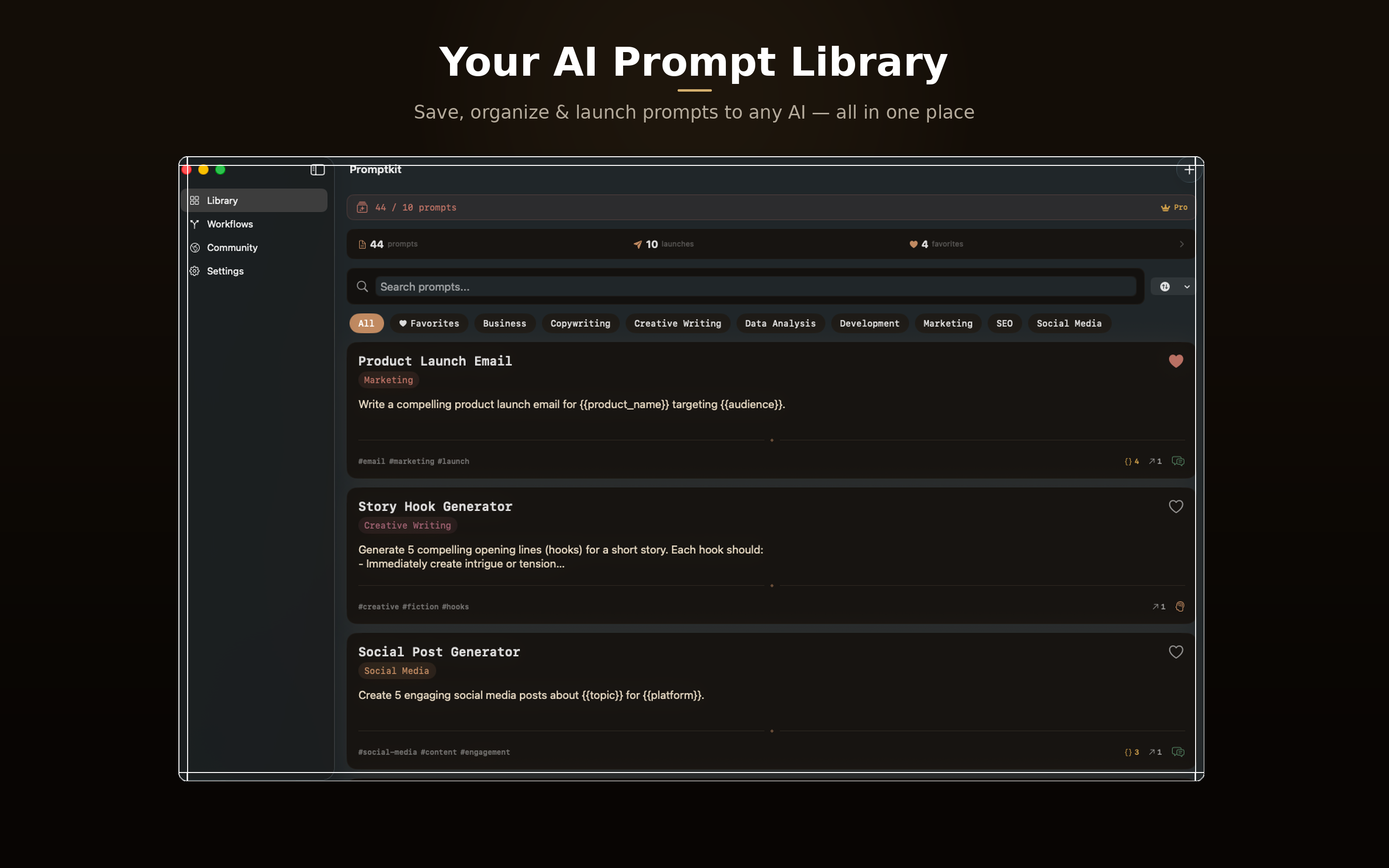
The Mac version has a sidebar for Library, Workflows, Community, and Settings. It feels like a proper Mac app because it is one — not a scaled-up phone screen.
Create prompts on your Mac with a full keyboard. Launch them from your phone on the couch. Build workflows on one device, run them on the other. Your prompt library is everywhere you are.
Start With 200+ Prompts
Cold-starting a prompt library is annoying. So we solved that with Prompt Packs.
During onboarding, you pick the categories you care about — Marketing, Development, Copywriting, SEO, Social Media, Data Analysis, and more. Each category has 20-40 expert-crafted prompts that load instantly into your library.
The packs ship bundled with the app — no internet required, no loading spinners. Pick your categories, tap continue, and your library is pre-loaded with prompts that are actually good.
Every pack prompt is fully editable. Add variables. Change the wording. Make it yours. They’re your prompts now — the pack is just a starting point.
And we’ll add new prompt packs over time via remote updates. No app update required.
What About Privacy?
PromptKit is offline-first. Your prompt library works without internet. Creating, editing, and launching prompts all happen locally. Cloud sync is optional — it pushes to Supabase for cross-device sync, but the local copy on your device is always the source of truth.
We don’t read your prompts. We don’t train on your prompts. We don’t sell your prompt data. Your library is yours.
The community feed is the one feature that requires a connection — obviously, because it’s a shared space. But your personal prompts never leave your device unless you explicitly publish them.
Pricing
We wanted the pricing to be a no-brainer. Like, “I’ll spend more on coffee this week” territory.
- Pro Monthly: $2.99/mo — unlimited prompts, workflows, community access, cloud sync. Launch promo price.
- Pro Lifetime: $29.99 — same as monthly, one-time payment, yours forever. Launch promo price. For people who hate subscriptions (I’m people).
That’s it. No free tier with annoying limits. No “upgrade to unlock” popups every third tap. No ads. No data selling. You pay once (or monthly), you get everything. The price will go up after launch — this is the early adopter deal.
Why Native?
We’ve talked about this before on this blog. We build native apps because they’re better. PromptKit on iOS uses the system keyboard extension API — something a web app literally cannot do. The Mac version has a proper sidebar, keyboard shortcuts, menu bar integration, and App Shortcuts support. Home screen Quick Actions let you jump to New Prompt, Search, or Workflows without even opening the app. Face ID protects your library. Push notifications alert you to community activity. Spotlight search finds your prompts system-wide.
And we went deep on accessibility — full VoiceOver support on every screen, Dynamic Type so text scales to any size, high contrast mode, reduced motion support, and Switch Control compatibility. This isn’t a checkbox exercise — it’s how you build apps that Apple actually notices and features. Some of the best apps in the App Store got there partly because they took accessibility seriously from day one.
These aren’t nice-to-haves. They’re the difference between an app that feels like it belongs on your device and a web wrapper that feels like a tourist.
When?
PromptKit is coming soon. We’re in final testing now. iOS and macOS, universal app, one purchase.
If you want to know the moment it drops, visit the PromptKit page or reach out to us directly to join the beta.
In the meantime, I’ll be over here — with all 47 of my prompts finally in one place, tagged, categorized, and launchable with one tap. The Google Doc has been retired. The Slack DMs have been cleared. The .txt file named prompts_final_v2_ACTUAL_FINAL.txt has been deleted.
It feels like cleaning out a closet you’ve been avoiding for two years.
It feels damn good.
Related Reading
If you’re into AI-powered development workflows, you might also enjoy:
- Vibe Coding for iOS: A Comprehensive Analysis — How we use AI to build production-quality native apps, and why prompt management is a critical piece of that puzzle.
- Claude Code Commands I Actually Use — Custom slash commands are essentially structured prompts. PromptKit brings that same concept to every AI, not just Claude Code.
- Claude’s Untapped Power: The Automation Layers Most Developers Ignore — From single prompts to multi-step workflows to full agent orchestration. PromptKit’s workflow builder covers the first two layers for everyone.
- Why We Build Native Apps — The philosophy behind PromptKit’s architecture: keyboard extensions, deep links, and system integrations that web apps can’t match.
Share this post
Comments
Leave a comment
Mario
Founder & CEOFounder of NativeFirst. Building native Apple apps with SwiftUI and a passion for great user experiences.