
Icon Composer and the New App-Icon Era: One Document Instead of Three Exported PNGs
For the last two days this series has been about glass inside your app — the chrome you get for free and the custom components worth building. Today we back all the way out to the first pixel anyone ever sees: the icon on the home screen.
Here’s the thing that changed and almost nobody mentions until they hit it. iOS 26 doesn’t want an app icon anymore. It wants your icon to survive four different lighting conditions — default, dark, clear, and tinted — and it wants them to feel like the same icon, just relit.
The old way to do that was to export three flat 1024px PNGs by hand and pray they matched. The new way is one document. That document is Icon Composer, and the difference is bigger than it sounds.
Let me show you the old pain first, because it’s the reason the new tool exists.
The old way: three PNGs and a slow drift
Open the asset catalog of an app I built last year and the AppIcon looks like this under the hood — three separate image slots, one per appearance:
{
  "images" : [
    { "idiom" : "universal", "platform" : "ios", "size" : "1024x1024" },
    {
      "appearances" : [ { "appearance" : "luminosity", "value" : "dark" } ],
      "idiom" : "universal", "platform" : "ios", "size" : "1024x1024"
    },
    {
      "appearances" : [ { "appearance" : "luminosity", "value" : "tinted" } ],
      "idiom" : "universal", "platform" : "ios", "size" : "1024x1024"
    }
  ]
}
Three slots. Three 1024×1024 PNGs I had to produce in a design tool, export, and drag in. And every time I tweaked the brand color, I had to redo all three and keep them visually consistent by eye. The tinted one especially — that’s a grayscale-ish single-color treatment, and getting it to read well meant a separate export with separate settings.
It worked. It also drifted. Six weeks after launch the dark variant had a slightly different cup shape than the light one, because I’d fixed a curve in one PNG and forgotten the others. Nobody filed a bug. It just looked very slightly off in dark mode, the way a photocopy of a photocopy looks off. That’s the failure mode of “the same thing, expressed three times by hand”: the three copies wander.
I wrote a whole tool to manage that drift back in April. Funny in hindsight, because Apple was about to make the tool unnecessary.
The new way: one layered document, relit by the system
Icon Composer ships inside Xcode 26 (it’s a standalone app tucked in the Xcode bundle, and it opens on its own). Instead of three finished PNGs, you give it layers and let the system do the relighting.
The model is simple once it clicks:
- A rounded-rectangle background — Apple owns the shape and the mask. You don’t draw the rounded corners. You don’t draw the gloss. You give it a color or gradient and it becomes the base.
- Up to four foreground layers on top — your cup, your wordmark, your little spark of personality.
- Each layer carries material properties: specular highlight (how shiny the edges catch light), translucency and frosting, and a drop shadow the system casts for you.
From that one .icon document, the system generates the whole matrix: Default, Dark, Clear Light, Clear Dark, Tinted Light, Tinted Dark. You don’t export six images. You describe one object, and iOS relights it the way a real object would look under different lamps.
That’s the whole mental shift. You stopped shipping pictures and started shipping a model of an object. The variants aren’t separate artwork anymore — they’re the same artwork under different light. Drift becomes structurally impossible, because there’s only one source.
Look at any real home screen for a second:
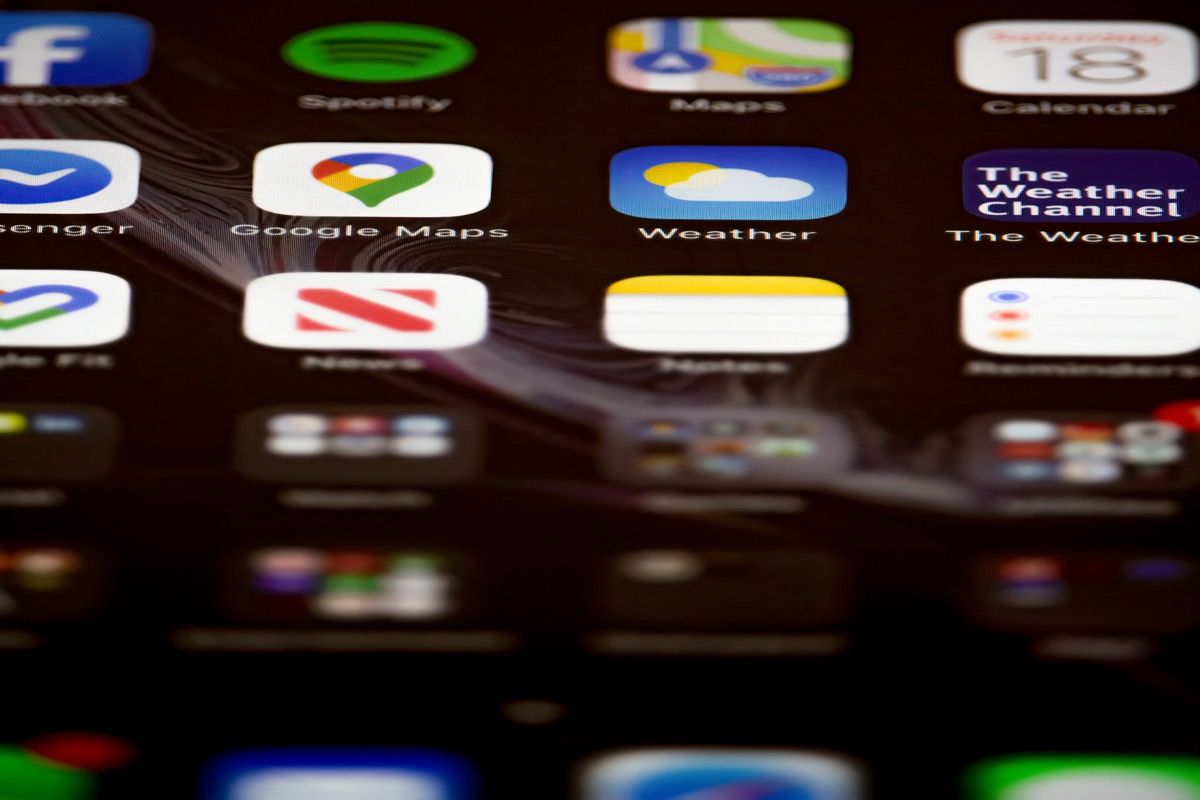
Every one of those tiles now has to look right in four conditions. The apps that nail it aren’t the ones with four sets of artwork. They’re the ones that handed the system a clean layered object and let it do the physics.
The actual workflow: from one SVG to a full set
Here’s the practical loop, the part the keynote glosses over. It’s less “draw an icon” and more “hand the tool clean parts.”
1. Design your foreground as flat, opaque layers. Whatever you use — Figma, Sketch, Pixelmator, Illustrator — build the icon as separate layers and export each as an opaque SVG. The word opaque is doing heavy lifting: do not bake in shadows, do not bake in the gloss, do not pre-round the corners. Those are the system’s job now. If you bake a shadow into your SVG, you’ll get a shadow on top of the shadow Icon Composer adds, and it’ll look muddy. Ship the silhouette, not the lighting.
2. Import the layers and build the stack. In Icon Composer you drop the background in first, then stack your foreground SVGs. You position them, set opacity, pick the background color or gradient. This is also where you tune the material — bump the specular on the layer you want to catch light, add a little translucency to the layer you want to feel like frosted glass.
3. Preview the matrix live. This is the part that actually saves your afternoon. Along the bottom there are device buttons — iPhone, iPad, Mac, Watch — and an appearance toggle. Click through Default → Dark → Tinted and watch the same layers relight in real time. No export, no rebuild, no “let me boot the simulator to check the dark one.” If the tinted version turns to mush, you see it immediately and you fix the layer, which fixes all variants at once.
4. Drop the .icon into your Xcode target. Set it as the app icon in your target’s build settings (it replaces the old AppIcon asset). When you build, Xcode bundles the Liquid Glass assets into the app’s Assets.car, and — this is the nice part — it also auto-generates a traditional static .icns from your design for backward compatibility. One source document, modern and legacy outputs, zero hand-exporting.
The mistake I made on my first try: I spent an hour perfecting the Default appearance, shipped it, and the tinted variant looked terrible because I’d used three similar mid-tone colors that all collapse to the same gray under tinting. The fix wasn’t more exports. It was going back to the layers and giving them real contrast in lightness, not just in hue. Tinted mode is a brutal honesty test for your color choices. Use the live preview early, not at the end.
”Okay, but you said this series is TDD. You can’t test an icon.”
Correct. You cannot write #expect(icon.looksGood), and I’m not going to pretend the render is testable. It’s art, it goes through your eyes, same honest answer as the glass posts.
But the new era of icons isn’t only about the four appearances. It’s also about alternate icons — letting the app swap its icon at runtime. A Pro icon when the user subscribes. A milestone icon when BrewLog’s streak crosses a hundred days. A seasonal one in December. And that — the logic that decides which icon to show — is a pure function, and pure functions are exactly where the Essential Developer move lives: push the decision out of the view, leave the call site dumb, test the function.
The render isn’t where the bug is. The bug is “the Pro icon stayed on after the user’s subscription lapsed,” or “the holiday icon showed up in March.” Decisions. Testable.
enum AppIconChoice: Equatable {
    case primary                 // nil alternate -> the default .icon
    case pro
    case milestone(streak: Int)  // the centennial flex

    /// The asset name UIApplication wants, or nil for the primary icon.
    var alternateName: String? {
        switch self {
        case .primary:     return nil
        case .pro:         return "AppIcon-Pro"
        case .milestone:   return "AppIcon-Century"
        }
    }
}

func iconChoice(isPro: Bool, streak: Int) -> AppIconChoice {
    if streak >= 100 { return .milestone(streak: streak) }  // earned beats paid
    if isPro         { return .pro }
    return .primary
}
The test goes first, and it pins down every boundary that’s invisible until a user complains about it — the lapse, the exact milestone edge, the priority when two conditions are both true:
import Testing
@testable import BrewLog

@Suite("Which app icon to show")
struct AppIconChoiceTests {

    @Test("free user, no streak: the plain default icon, no alternate")
    func defaultUser() {
        #expect(iconChoice(isPro: false, streak: 0).alternateName == nil)
    }

    @Test("subscriber gets the Pro icon")
    func proUser() {
        #expect(iconChoice(isPro: true, streak: 10) == .pro)
    }

    @Test("the moment a subscription lapses, the Pro icon goes away")
    func lapsedSubscription() {
        #expect(iconChoice(isPro: false, streak: 10) == .primary)
    }

    @Test("a 100-day streak earns the milestone icon — and beats Pro")
    func milestoneBeatsPro() {
        #expect(iconChoice(isPro: true, streak: 100) == .milestone(streak: 100))
        #expect(iconChoice(isPro: false, streak: 100) == .milestone(streak: 100))
    }

    @Test("ninety-nine days is not a hundred")
    func milestoneBoundary() {
        #expect(iconChoice(isPro: true, streak: 99) == .pro)
    }
}
That milestoneBoundary test is the one that earns its keep. Off-by-one on a milestone is the kind of bug that ships, because nobody manually sets their streak to exactly 99 to check. The test does it for free, before the simulator ever boots.
And the call site stays boring — it maps a tested value onto the one UIKit call and does nothing else worth breaking:
@MainActor
func applyIcon(isPro: Bool, streak: Int) async {
    let target = iconChoice(isPro: isPro, streak: streak).alternateName
    guard UIApplication.shared.alternateIconName != target else { return } // no-op if unchanged
    try? await UIApplication.shared.setAlternateIconName(target)
}
(That guard matters more than it looks — calling setAlternateIconName with the value that’s already set still pops the system “You have changed the icon” alert on some versions. Skip the call when nothing changed. Yes, I learned that from a TestFlight reviewer who got the popup four times in one session.)
You don’t test the icon. You test the rule that chooses the icon, and the rule is the part that actually breaks. Same seam as lesson 10 of the SwiftUI at Scale course — the logic lives in a function you can hold in one hand, the view just renders the answer.
The honest decision: do you even need Icon Composer yet?
Because this series keeps trying to talk you out of work where the work isn’t earned:
- Move to a
.icondocument if you’re touching the icon anyway — a rebrand, a fresh app, or the dark/tinted variants already looked off. The single-source model pays for itself the first time you change your brand color and don’t have to redo three exports. - You’re not on fire if you don’t. The old appiconset with light/dark/tinted PNGs still builds and still ships in iOS 26. If your icon already looks fine in all appearances, Icon Composer is a quality-of-life upgrade, not an emergency. Spend the afternoon on something users will notice instead.
- If your icon genuinely can’t take the Liquid Glass treatment yet — heavy detail, a logo that legal won’t let you simplify, a redesign mid-flight — that’s the same conversation as the rest of the migration. There’s a grace period and an opt-out, and I wrote up exactly what breaks and when the clock runs out.
The win of Icon Composer isn’t that it makes a prettier icon. It’s that it makes one icon that can’t drift, that the system relights instead of you re-exporting. You traded three pictures for one model of an object. That’s the whole era.
Tomorrow
Day 7 of the series closes out the Liquid Glass week with the escape hatch: UIDesignRequiresCompatibility — when (and why) to opt out of Liquid Glass entirely. Apple gives you a one-year grace period for a reason, and there are real apps — banking, enterprise, anything mid-redesign — where using it is the right professional call, not a cop-out. I’ll show you the flag, the deadline, and the honest decision matrix.
For today: if you’re already in your icon files, open Icon Composer, hand it clean opaque layers instead of finished PNGs, and let the system relight them. And if you do anything clever with alternate icons, push the “which icon when” decision into a function and test the boundaries — because the off-by-one milestone is always the one that ships.
One document, not three pictures. Relit, not re-exported. Test the choice, not the render.
Share this post
Comments
Leave a comment
Mario
Founder & CEOFounder of NativeFirst. Building native Apple apps with SwiftUI and a passion for great user experiences.