
Setup & Your First Prompt
Alright, enough theory. Let us get our hands dirty. By the end of this lesson, you will have Claude Code running in a real Xcode project and you will have generated your first SwiftUI view using nothing but a natural language description.
Installing Claude Code
If you have not installed Claude Code yet, here is the quick version. Open your terminal and run:
npm install -g @anthropic-ai/claude-codeThat is it. You need Node.js 18 or later. If you do not have Node, install it via Homebrew:
brew install nodeOnce installed, verify it works:
claude --versionYou should see the version number. Now, Claude Code requires an Anthropic API key. You can either set it as an environment variable or log in through the interactive setup:
claudeThe first time you run it, it will walk you through authentication. Follow the prompts — you will need an Anthropic account with API access.
One important note: Claude Code uses API credits. Opus 4.6, our primary model, is the most expensive tier. For this course, you will spend roughly $5-15 total on API calls if you follow along with every exercise. I am being upfront about this because some courses hide the cost. AI is not free, and for production-quality output, you want the best model.
Creating the Xcode Project
Let us create a fresh project. Open Xcode, File → New → Project.
- Template: iOS → App
- Product Name: VibeCourseDemo
- Organization Identifier: Your reverse domain (e.g., com.yourname)
- Interface: SwiftUI
- Storage: SwiftData
- Language: Swift
Hit Create. Save it wherever you like — I will put mine on the Desktop for now.
Before we do anything else, let us look at what Xcode gave us:
VibeCourseDemo/
├── VibeCourseDemoApp.swift    // App entry point
├── ContentView.swift           // Default view
├── Item.swift                  // SwiftData model (default)
├── Assets.xcassets/            // Asset catalog
└── Preview Content/            // Preview assets
Standard boilerplate. The ContentView.swift has a basic list with SwiftData items. Let us leave it for now.
Running Claude Code
Open a terminal window and navigate to your project:
cd ~/Desktop/VibeCourseDemoNow run Claude Code:
claudeWatch what happens. Claude Code scans your project directory. It sees the .xcodeproj file, the Swift source files, the asset catalogs — everything. This is already fundamentally different from asking ChatGPT a Swift question. Claude Code has context.
You should see something like a prompt where you can type. This is your conversational interface to the AI. Everything you type here is a prompt, and Claude Code will respond with explanations, code, and file modifications.
Your First CLAUDE.md
Before we write our first real prompt, let us create a minimal CLAUDE.md file. This file tells Claude Code the rules of your project. Think of it as a style guide for your AI collaborator.
Type this in Claude Code:
Create a CLAUDE.md file in the project root with these rules:
- This is an iOS app using SwiftUI and SwiftData
- Use MVVM architecture
- Target iOS 17+
- Use modern Swift concurrency (async/await)
- Follow Apple Human Interface Guidelines
- Keep views simple and declarative
- Use @Observable macro instead of ObservableObject
Claude Code will create a CLAUDE.md file in your project root. Let us look at what it generated:
# VibeCourseDemo

## Architecture
- MVVM (Model-View-ViewModel)
- SwiftUI for all views
- SwiftData for persistence

## Guidelines
- Target: iOS 17+
- Use modern Swift concurrency (async/await)
- Follow Apple Human Interface Guidelines
- Keep views simple and declarative — no business logic in views
- Use @Observable macro instead of ObservableObject protocol
- Prefer value types (structs) where possible
Perfect. Every prompt we send from now on will respect these rules. We will go deep on CLAUDE.md in Module 2 — for now, this minimal version is enough.
The First Real Prompt
Here is the moment of truth. Let us describe a feature in plain English and see what Claude Code generates.
We are going to ask for a simple but realistic feature: a user profile screen. Type this:
Create a ProfileView that shows:
- A circular profile image placeholder (using SF Symbols)
- The user's name in a large, bold title
- An email address below the name
- A "Settings" section with toggles for notifications and dark mode
- A "Sign Out" button at the bottom in red
- Use proper spacing and follow Apple's design patterns
- Create a ProfileViewModel to manage the state
Watch it work. Claude Code is not just generating one code snippet — it is creating multiple files that work together.
Let us review what it generated.
Reviewing the Output
Claude Code should have created two files. Let us look at them.
ProfileViewModel.swift:
import SwiftUI

@Observable
class ProfileViewModel {
    var userName: String = "Mario Petkovski"
    var email: String = "mario@nativefirstapp.com"
    var notificationsEnabled: Bool = true
    var darkModeEnabled: Bool = false

    func signOut() {
        // TODO: Implement sign out logic
    }
}
Look at what it got right:
- Used
@Observablemacro, not the oldObservableObject— exactly what we specified in CLAUDE.md - Clean separation: no UI code in the ViewModel
- Sensible defaults
- A placeholder for the sign-out logic with a clear TODO
ProfileView.swift:
import SwiftUI

struct ProfileView: View {
    @State private var viewModel = ProfileViewModel()

    var body: some View {
        NavigationStack {
            List {
                // Profile Header
                Section {
                    VStack(spacing: 12) {
                        Image(systemName: "person.circle.fill")
                            .resizable()
                            .scaledToFit()
                            .frame(width: 80, height: 80)
                            .foregroundStyle(.secondary)

                        Text(viewModel.userName)
                            .font(.title2)
                            .fontWeight(.bold)

                        Text(viewModel.email)
                            .font(.subheadline)
                            .foregroundStyle(.secondary)
                    }
                    .frame(maxWidth: .infinity)
                    .padding(.vertical, 8)
                }

                // Settings
                Section("Settings") {
                    Toggle("Notifications", isOn: $viewModel.notificationsEnabled)
                    Toggle("Dark Mode", isOn: $viewModel.darkModeEnabled)
                }

                // Sign Out
                Section {
                    Button("Sign Out", role: .destructive) {
                        viewModel.signOut()
                    }
                    .frame(maxWidth: .infinity)
                }
            }
            .navigationTitle("Profile")
        }
    }
}

#Preview {
    ProfileView()
}
Let us count the things it got right:
- MVVM pattern — View and ViewModel are separate, as our CLAUDE.md specified
- @State with @Observable — correct modern pattern for owning an Observable object
- NavigationStack — not the deprecated NavigationView
- List with Sections — proper iOS design pattern, not custom scroll views
- SF Symbols — used
person.circle.fill, exactly what we asked for - Destructive button role — the sign-out button is automatically red, using SwiftUI’s semantic styling
- Preview macro — included
#Previewso we can see it immediately in Xcode - Proper spacing and typography —
title2.boldfor the name,subheadline.secondaryfor the email
This is what I mean by idiomatic SwiftUI. It is not just code that compiles — it is code that a senior iOS developer would write. It follows Apple’s patterns, uses the right modifiers, and looks native.
The Feedback Loop
Now, is the output perfect? Almost certainly not for your specific needs. Maybe you want the image to be larger. Maybe you want the settings toggles to have icons. This is where the feedback loop comes in.
Type this follow-up prompt:
Update ProfileView:
- Make the profile image 100x100 instead of 80x80
- Add SF Symbol icons to the toggle rows (bell.fill for notifications, moon.fill for dark mode)
- Add a version number at the bottom of the list in a footer
Notice something critical: we did not re-describe the entire view. We gave Claude Code specific, incremental feedback. It already knows the full context — it reads the existing file, understands the structure, and makes targeted changes.
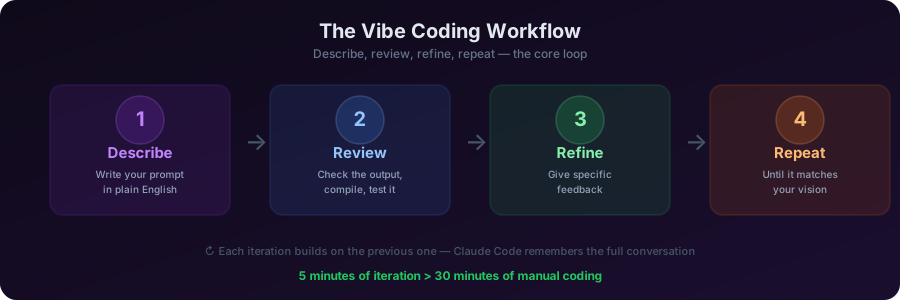
This is the vibe coding workflow:
- Describe what you want
- Review what AI generates
- Refine with specific feedback
- Repeat until it matches your vision
It is conversational. It is iterative. And it is dramatically faster than writing everything from scratch.
What Just Happened
Let us step back and appreciate what just happened. In about five minutes, we:
- Created a CLAUDE.md configuration file
- Generated a complete MVVM profile screen — two files, proper architecture
- Refined it with follow-up prompts
- Got a screen that follows Apple’s design guidelines and uses modern APIs
Would this take a senior developer long to write by hand? Maybe 20-30 minutes. But that is just one screen. When you are building an entire app with dozens of screens, the time savings compound exponentially.
And more importantly — the cognitive load is different. Instead of thinking about syntax, modifier ordering, and state management boilerplate, you are thinking about what the feature should do. That is a fundamentally different, and more productive, mental mode.
Closing
That is your setup complete and your first taste of vibe coding with Claude Code. In Module 2, we are going to go deep on the skill that separates effective AI-assisted developers from frustrated ones: prompting.
Because the quality of your output is directly proportional to the quality of your input. And there are specific techniques that make a massive difference. See you in the next lesson.
Key Takeaways
- Claude Code installation is one command:
npm install -g @anthropic-ai/claude-code - CLAUDE.md is your project’s rule book for AI — even a minimal version dramatically improves output quality
- The describe → review → refine loop is the core vibe coding workflow
- Claude Code generates multi-file, architecturally correct code, not just snippets
- Idiomatic output — modern APIs, proper patterns, Apple design guidelines — is the key differentiator
- AI coding uses API credits — budget roughly $5-15 for this entire course
Homework
Hands-on exercise (20 minutes):
- Install Claude Code and authenticate
- Create a new Xcode project (or use an existing one)
- Write a CLAUDE.md with at least 5 rules for your project
- Generate one screen of your choice using a descriptive prompt
- Refine it with at least two follow-up prompts
- Compare the AI output with how you would have written it by hand — what is the same? What is different?
Mario
Founder & CEOFounder of NativeFirst. Building native Apple apps with SwiftUI and a passion for great user experiences.
Comments
Leave a comment