
Anatomy of a Good Prompt
Welcome to Module 2. If Module 1 was about what tools to use, Module 2 is about how to use them. And it starts here — with the single most important skill in AI-assisted development: writing effective prompts.
I am going to make a bold claim: the quality of your prompts matters more than which AI model you use. A well-crafted prompt with Claude Sonnet will outperform a lazy prompt with Claude Opus. I have seen this over and over again.
The good news? Prompting is a learnable skill with clear patterns. Let me show you the framework.
The Four-Part Framework
Every effective prompt for code generation has four components:
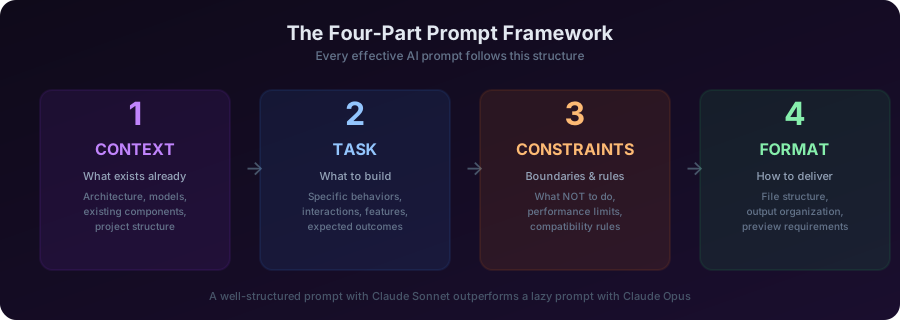
Let us break each one down.
1. Context — What Exists Already
Context tells the AI where it is working and what already exists. Without context, the AI is guessing.
Bad: “Make a login screen.” Good: “In our app that uses MVVM with SwiftData, we need a login screen. We already have an AuthService that handles API calls and a User model with email and name properties.”
With Claude Code, some context is automatic — it reads your project files. But explicit context about intent and relationships between components is still on you.
2. Task — What To Do
The task is the actual thing you want built. Be specific about behavior, not just appearance.
Bad: “Add a button.” Good: “Add a ‘Save’ button that validates the form inputs, shows an inline error if the name field is empty, disables itself while saving, and navigates back on success.”
Notice the difference? The second prompt describes four distinct behaviors. Each one will be implemented correctly because you specified it.
3. Constraints — Boundaries & Rules
Constraints tell the AI what NOT to do, or what rules to follow. This prevents the AI from making assumptions.
Examples of constraints:
- “Do not use any third-party libraries”
- “This needs to work offline — no network calls”
- “Keep the view under 50 lines”
- “Do not modify the existing data model”
- “Support Dynamic Type and VoiceOver”
Constraints are especially important for iOS because there are often multiple valid approaches, and you want a specific one.
4. Format — How To Deliver
Format tells the AI how to structure its output. For code generation, this usually means which files to create or modify.
Examples:
- “Create a new file called SettingsView.swift”
- “Add this to the existing ContentView, inside the NavigationStack”
- “Create both the View and ViewModel as separate files”
- “Include a preview with sample data”
Live Demo: Bad vs. Good
Let me show you this framework in action. We are going to build the same feature twice — once with a bad prompt, once with a good prompt — and compare the results.
The feature: A search bar that filters a list of items.
The Bad Prompt
Add search to the listLet us see what we get…
Okay, look at what Claude Code produced. It probably added a .searchable modifier to an existing list, with basic string matching. And honestly? This is not terrible — Claude Code’s project context saves it from the worst outcomes. But watch what happens with a better prompt.
The Good Prompt
Add search functionality to ContentView:

Context: The list displays Item objects from SwiftData, each with
a name (String) and timestamp (Date) property.

Task:
- Add a search bar using the .searchable modifier
- Filter items by name (case-insensitive, contains matching)
- Show a "No results" state when search matches nothing
- Highlight the matching text in results

Constraints:
- Filter locally (no network) using SwiftData predicates
- Keep the search responsive — filter on every keystroke
- Do not modify the Item model

Format:
- Modify ContentView.swift only
- Add search state and filtering logic to the existing view
Now compare the two results.
The second version includes:
- Proper SwiftData
#Predicatefiltering with case-insensitive search - A
ContentUnavailableViewfor the empty state (Apple’s built-in component) - Text highlighting on matching substrings
- Smooth performance because it uses the database query, not in-memory filtering
Same feature. Same model. Same tool. The difference is entirely in the prompt.
SwiftUI-Specific Techniques
Here are prompting techniques that are specifically valuable for SwiftUI development:
1. Reference Apple’s Components by Name
Do not say “a popup” — say “a .sheet or .fullScreenCover.”
Do not say “a dropdown” — say “a Picker with .menu style.”
Do not say “a progress bar” — say “a ProgressView with .linear style.”
When you use Apple’s terminology, the AI generates code that uses the correct, native components.
2. Specify the Modifier Chain
SwiftUI modifier order matters. If you care about specific behavior, mention it:
Apply .padding() before .background() so the background
extends behind the padding area.
3. Mention State Management Explicitly
Use @State for local view state, @Binding for passed-down state,
and @Environment for shared dependencies.
This prevents the AI from using the wrong property wrapper — a common source of bugs.
4. Reference Apple Frameworks, Not Generic Solutions
Use MapKit's Map view for the map display — do not use a WebView
with Google Maps.
Use PhotosPicker from PhotosUI for image selection — do not build
a custom file picker.5. Describe Animation Behavior
Animate the transition with .spring(response: 0.3, dampingFraction: 0.8).
The card should scale from 0.95 to 1.0 and fade from 0 to 1 simultaneously.
Be specific about animations. “Add a nice animation” will give you inconsistent results. Concrete parameters give you exactly what you want.
The Specificity Sweet Spot
        Quality of AI Output
              ▲
              │         ╭──╮
              │        ╱    ╲
              │       ╱      ╲
              │      ╱        ╲
              │     ╱          ╲
              │    ╱            ╲
              │   ╱              ╲
              └──╱────────────────╲──→
           Too Vague   Just Right   Too Detailed
There is a sweet spot for prompt specificity.
Too vague: “Make a nice settings page.” The AI has to guess everything — layout, features, navigation, data model.
Too detailed: “Create a VStack with 16 points of padding, containing a Text view with the .headline font, followed by a 1-pixel Divider, followed by a ForEach loop iterating over an array of SettingsItem structs…” At this point, you are writing the code yourself in English. There is no benefit.
Just right: “Create a settings page with sections for Account (name, email, photo), Preferences (notifications toggle, theme picker), and Support (help link, feedback form). Use a List with grouped style. The account section should display the current user’s data from UserViewModel.”
The sweet spot is: describe what it should DO and look like, not exactly how to CODE it. Let the AI handle the implementation. You handle the intent.
Closing
To recap — every prompt should have:
- Context — what exists already
- Task — what to build, described by behavior
- Constraints — boundaries and rules
- Format — how to deliver the output
And for SwiftUI specifically: use Apple’s component names, specify state management, reference native frameworks, and be concrete about animations.
In the next lesson, we are going to talk about the most powerful tool in your vibe coding arsenal — the CLAUDE.md file. It is the difference between telling AI your rules every single time and teaching it once.
Key Takeaways
- Prompt quality > model quality — a good prompt with Sonnet beats a lazy prompt with Opus
- Use the four-part framework: Context → Task → Constraints → Format
- Be behavior-specific: describe what it should DO, not just how it should look
- Use Apple’s terminology: reference components, modifiers, and frameworks by their actual names
- The specificity sweet spot: describe intent and behavior, let AI handle implementation
- Constraints prevent bad assumptions — tell AI what NOT to do
Homework
Prompt rewriting exercise (15 minutes):
Take these three bad prompts and rewrite them using the four-part framework:
- Bad: “Add a tab bar to the app”
- Bad: “Make the list look better”
- Bad: “Add dark mode support”
Write your improved versions and test them in Claude Code. Compare the output quality.
Mario
Founder & CEOFounder of NativeFirst. Building native Apple apps with SwiftUI and a passion for great user experiences.
Comments
Leave a comment